

Provider Slug.
vertex-aiPortkey SDK Integration with Google Vertex AI
Portkey provides a consistent API to interact with models from various providers. To integrate Google Vertex AI with Portkey:1. Install the Portkey SDK
Add the Portkey SDK to your application to interact with Google Vertex AI API through Portkey’s gateway.- NodeJS
- Python
npm install --save portkey-ai
pip install portkey-ai
2. Initialize Portkey Client
To integrate Vertex AI with Portkey, you’ll need yourVertex Project Id Or Service Account JSON & Vertex Region, with which you can set up the Portkey’s AI Provider.
Here’s a guide on how to find your Vertex Project details
If you are integrating through Service Account File, refer to this guide.
- NodeJS SDK
- Python SDK
import Portkey from 'portkey-ai'

const portkey = new Portkey({
    apiKey: "PORTKEY_API_KEY", // defaults to process.env["PORTKEY_API_KEY"]

})
from portkey_ai import Portkey

portkey = Portkey(
    api_key="PORTKEY_API_KEY",  # Replace with your Portkey API key
)
3. Invoke Chat Completions with Vertex AI
Use the Portkey instance to send requests to any models hosted on Vertex AI. You can also override the Portkey’s AI Provider directly in the API call if needed.Vertex AI uses OAuth2 to authenticate its requests, so you need to send the access token additionally along with the request.
- NodeJS SDK
- Python SDK
const chatCompletion = await portkey.chat.completions.create({
    messages: [{ role: 'user', content: 'Say this is a test' }],
    model: '@VERTEX_PROVIDER/gemini-1.5-pro-latest', // your model slug from Portkey's Model Catalog
}, {Authorization: "Bearer $YOUR_VERTEX_ACCESS_TOKEN"});

console.log(chatCompletion.choices);
completion = portkey.with_options(Authorization="Bearer $YOUR_VERTEX_ACCESS_TOKEN").chat.completions.create(
    messages= [{ "role": 'user', "content": 'Say this is a test' }],
    model= '@VERTEX_PROVIDER/gemini-1.5-pro-latest' # your model slug from Portkey's Model Catalog
)

print(completion)
To use Anthopic models on Vertex AI, prepend
Example:
Example:
anthropic. to the model name.Example:
@VERTEX_PROVIDER/anthropic.claude-3-5-sonnet@20240620Similarly, for Meta models, prepend meta. to the model name.Example:
@VERTEX_PROVIDER/meta.llama-3-8b-8192Anthropic Beta Header Support: When using Anthropic models on Vertex AI, you can pass the
anthropic-beta header (or x-portkey-anthropic-beta) to enable beta features. This header is forwarded to the underlying Anthropic API.Using the /messages Route with Vertex AI Models
Access Claude models on Vertex AI through Anthropic’s native/messages endpoint using Portkey’s SDK or Anthropic’s SDK.
This route only works with Claude models. For other models, use the standard OpenAI compliant endpoint.
- cURL
- Python SDK
- NodeJS SDK
- Anthropic Python SDK
- Anthropic TypeScript SDK
curl --location 'https://api.portkey.ai/v1/messages' \
--header 'Content-Type: application/json' \
--header 'x-portkey-api-key: YOUR_PORTKEY_API_KEY' \
--data '{
    "model": "@YOUR_VERTEX_PROVIDER/MODEL_NAME",
    "max_tokens": 250,
    "messages": [
        {
            "role": "user",
            "content": "Hello, Claude"
        }
    ]
}'
Coming Soon!
Coming Soon!
Anthropic Python SDK
  import anthropic

  client = anthropic.Anthropic(
      api_key="dummy", # we will use portkey's provider slug
      default_headers={"x-portkey-api-key": "YOUR_PORTKEY_API_KEY"},
      base_url="https://api.portkey.ai/v1"
  )
  message = client.messages.create(
      model="@your-provider-slug/your-model-name",
      max_tokens=250,
      messages=[
          {"role": "user", "content": "Hello, Claude"}
      ],
  )
  print(message.content)
Anthropic TS SDK
   import Anthropic from '@anthropic-ai/sdk';

   const anthropic = new Anthropic({
     apiKey: 'dummy', // we will use portkey's provider slug
     baseURL: "https://api.portkey.ai/v1",
     defaultHeaders: { "x-portkey-api-key": "YOUR_PORTKEY_API_KEY" }
   });

   const msg = await anthropic.messages.create({
     model: "@your-provider-slug/your-model-name",
     max_tokens: 1024,
     messages: [{ role: "user", content: "Hello, Claude" }],
   });
   console.log(msg);
Counting Tokens
Portkey supports the Google Vertex AI CountTokens API to estimate token usage before sending requests. Check out the count-tokens guide for more details.
Explicit context caching
Vertex AI supports context caching to reduce costs and latency for repeated prompts with large amounts of context. You can explicitly create a cache and then reference it in subsequent inference requests.This is different from Portkey’s gateway caching. Vertex AI context caching is a native Google feature that caches large context (system instructions, documents, etc.) on Google’s servers. Portkey’s simple and semantic caching caches complete request-response pairs at the gateway level. Use Vertex AI context caching when you have large, reusable context; use Portkey’s gateway caching for repeated identical or similar requests.
Gemini models only. Context caching is only available for Gemini models on Vertex AI (e.g.,
gemini-1.5-pro, gemini-1.5-flash). It is not supported for Anthropic, Meta, or other models hosted on Vertex AI.Pricing
Context caching can significantly reduce costs for applications with large, reusable context:| Token type | Price per token |
|---|---|
| Cache write (input) | $0.000625 |
| Cache read (input) | $0.00005 |
Step 1: Create a context cache
Use Portkey’s proxy capability with thex-portkey-custom-host header to call Vertex AI’s native caching endpoints. This routes your request through Portkey while targeting Vertex AI’s cachedContents API directly.
- cURL
- Python
- NodeJS
curl --location 'https://api.portkey.ai/v1/projects/{{YOUR_PROJECT_ID}}/locations/{{LOCATION}}/cachedContents' \
--header 'x-portkey-provider: {{@my-vertex-ai-provider}}' \
--header 'Content-Type: application/json' \
--header 'x-portkey-api-key: {{your_api_key}}' \
--header 'x-portkey-custom-host: https://aiplatform.googleapis.com/v1' \
--data '{
  "model": "projects/{{YOUR_PROJECT_ID}}/locations/{{LOCATION}}/publishers/google/models/{{MODEL_ID}}",
  "displayName": "{{my-cache-display-name}}",
  "contents": [{
    "role": "user",
      "parts": [{
        "text": "This is sample text to demonstrate explicit caching. (you need a minimum of 1024 tokens)"
      }]
  },
  {
    "role": "model",
      "parts": [{
        "text": "thankyou I am your helpful assistant"
      }]
  }],
  "ttl": "3600s"
}'
import requests

YOUR_PROJECT_ID = "your-project-id"
LOCATION = "us-central1"
MODEL_ID = "gemini-1.5-pro-001"

url = f"https://api.portkey.ai/v1/projects/{YOUR_PROJECT_ID}/locations/{LOCATION}/cachedContents"

headers = {
    "x-portkey-provider": "@my-vertex-ai-provider",
    "Content-Type": "application/json",
    "x-portkey-api-key": "your_portkey_api_key",
    "x-portkey-custom-host": "https://aiplatform.googleapis.com/v1"
}

payload = {
    "model": f"projects/{YOUR_PROJECT_ID}/locations/{LOCATION}/publishers/google/models/{MODEL_ID}",
    "displayName": "my-cache-display-name",
    "contents": [
        {
            "role": "user",
            "parts": [{"text": "This is sample text to demonstrate explicit caching. (minimum 1024 tokens required)"}]
        },
        {
            "role": "model",
            "parts": [{"text": "Thank you, I am your helpful assistant"}]
        }
    ],
    "ttl": "3600s"
}

response = requests.post(url, headers=headers, json=payload)
cache_name = response.json().get("name")  # Save this for inference requests
print(f"Cache created: {cache_name}")
const YOUR_PROJECT_ID = "your-project-id";
const LOCATION = "us-central1";
const MODEL_ID = "gemini-1.5-pro-001";

const response = await fetch(
  `https://api.portkey.ai/v1/projects/${YOUR_PROJECT_ID}/locations/${LOCATION}/cachedContents`,
  {
    method: 'POST',
    headers: {
      'x-portkey-provider': '@my-vertex-ai-provider',
      'Content-Type': 'application/json',
      'x-portkey-api-key': 'your_portkey_api_key',
      'x-portkey-custom-host': 'https://aiplatform.googleapis.com/v1'
    },
    body: JSON.stringify({
      model: `projects/${YOUR_PROJECT_ID}/locations/${LOCATION}/publishers/google/models/${MODEL_ID}`,
      displayName: 'my-cache-display-name',
      contents: [
        {
          role: 'user',
          parts: [{ text: 'This is sample text to demonstrate explicit caching. (minimum 1024 tokens required)' }]
        },
        {
          role: 'model',
          parts: [{ text: 'Thank you, I am your helpful assistant' }]
        }
      ],
      ttl: '3600s'
    })
  }
);

const data = await response.json();
const cacheName = data.name; // Save this for inference requests
console.log(`Cache created: ${cacheName}`);
| Variable | Description |
|---|---|
YOUR_PROJECT_ID | Your Google Cloud project ID |
LOCATION | The region where your model is deployed (e.g., us-central1) |
MODEL_ID | The Gemini model identifier (e.g., gemini-1.5-pro-001) |
my-cache-display-name | A unique name to identify your cache |
your_api_key | Your Portkey API key |
@my-vertex-ai-provider | Your Vertex AI provider slug from Portkey’s Model Catalog |
ttl | Cache time-to-live (e.g., 3600s for 1 hour, 86400s for 1 day) |
Context caching requires a minimum of 1024 tokens in the cached content. The cache has a default TTL (time-to-live) which you can configure using the
ttl parameter.Proxy pattern limitation: Creating caches uses Portkey’s proxy capability to forward requests to Vertex AI’s native endpoints. Native endpoint support within Portkey’s standard API is not planned since context caching is Gemini-specific.
Step 2: Use the cache in inference requests
Once the cache is created, reference it in your chat completion requests using thecached_content parameter:
- cURL
- Python SDK
- NodeJS SDK
curl 'https://api.portkey.ai/v1/chat/completions' \
-H 'Content-Type: application/json' \
-H 'x-portkey-api-key: {{your_api_key}}' \
--data '{
    "model": "@my-vertex-ai-provider/gemini-1.5-pro-001",
    "cached_content": "{{my-cache-display-name}}",
    "messages": [
      {
        "role": "user",
        "content": "Based on the context I provided earlier, answer my question."
      }
    ]
}'
from portkey_ai import Portkey

portkey = Portkey(
    api_key="PORTKEY_API_KEY",
)

completion = portkey.chat.completions.create(
    model="@my-vertex-ai-provider/gemini-1.5-pro-001",
    cached_content="my-cache-display-name",
    messages=[
        {"role": "user", "content": "Based on the context I provided earlier, answer my question."}
    ]
)

print(completion)
import Portkey from 'portkey-ai';

const portkey = new Portkey({
    apiKey: "PORTKEY_API_KEY",
});

const completion = await portkey.chat.completions.create({
    model: "@my-vertex-ai-provider/gemini-1.5-pro-001",
    cached_content: "my-cache-display-name",
    messages: [
        { role: "user", content: "Based on the context I provided earlier, answer my question." }
    ]
});

console.log(completion);
The model and region used in the inference request must match the model and region used when creating the cache.
Using Self-Deployed Models on Vertex AI (Hugging Face, Custom Models)
Portkey supports connecting to self-deployed models on Vertex AI, including models from Hugging Face or any custom models you’ve deployed to a Vertex AI endpoint. Requirements for Self-Deployed Models To use self-deployed models on Vertex AI through Portkey:-
Model Naming Convention: When making requests to your self-deployed model, you must prefix the model name with
endpoints.endpoints.my_endpoint_name -
Required Permissions: The Google Cloud service account used in your Portkey Model Catalog must have the
aiplatform.endpoints.predictpermission.
- NodeJS SDK
- Python SDK
const chatCompletion = await portkey.chat.completions.create({
    messages: [{ role: 'user', content: 'Say this is a test' }],
    model: 'endpoints.my_custom_llm', // Notice the 'endpoints.' prefix
}, {Authorization: "Bearer $YOUR_VERTEX_ACCESS_TOKEN"});

console.log(chatCompletion.choices);
completion = portkey.with_options(Authorization="Bearer $YOUR_VERTEX_ACCESS_TOKEN").chat.completions.create(
    messages= [{ "role": 'user', "content": 'Say this is a test' }],
    model= 'endpoints.my_huggingface_model' # Notice the 'endpoints.' prefix
)

print(completion)
Why the prefix? Vertex AI’s product offering for self-deployed models is called “Endpoints.” This naming convention indicates to Portkey that it should route requests to your custom endpoint rather than a standard Vertex AI model.This approach works for all models you can self-deploy on Vertex AI Model Garden, including Hugging Face models and your own custom models.
Document, Video, Audio Processing
Vertex AI supports attaching various file types to your Gemini messages including documents (pdf), images (jpg, png), videos (webm, mp4), and audio files.
Supported Audio Formats:
mp3, wav, opus, ogg, flac, pcm, aac, m4a, mpeg, mpga, mp4, webmGemini Docs:const chatCompletion = await portkey.chat.completions.create({
messages: [
{ role: 'system', content: 'You are a helpful assistant' },
{ role: 'user', content: [
{
type: 'image_url',
image_url: {
url: 'gs://cloud-samples-data/generative-ai/image/scones.jpg'
}
},
{
type: 'text',
text: 'Describe the image'
}
]}
],
model: 'gemini-1.5-pro-001',
max_tokens: 200
});
completion = portkey.chat.completions.create(
    messages=[
        {
            "role": "system",
            "content": "You are a helpful assistant"
        },
        {
            "role": "user",
            "content": [
                {
                    "type": "image_url",
                    "image_url": {
                        "url": "gs://cloud-samples-data/generative-ai/image/scones.jpg"
                    }
                },
                {
                    "type": "text",
                    "text": "Describe the image"
                }
            ]
        }
    ],
    model='gemini-1.5-pro-001',
    max_tokens=200
)

print(completion)
curl --location 'https://api.portkey.ai/v1/chat/completions' \
--header 'x-portkey-provider: vertex-ai' \
--header 'x-portkey-vertex-region: us-central1' \
--header 'Content-Type: application/json' \
--header 'x-portkey-api-key: PORTKEY_API_KEY' \
--header 'Authorization: VERTEX_AI_ACCESS_TOKEN' \
--data '{
    "model": "gemini-1.5-pro-001",
    "max_tokens": 200,
    "stream": false,
    "messages": [
        {
            "role": "system",
            "content": "You are a helpful assistant"
        },
        {
            "role": "user",
            "content": [
                {
                    "type": "image_url",
                    "image_url": {
                        "url": "gs://cloud-samples-data/generative-ai/image/scones.jpg"
                    }
                },
                {
                    "type": "text",
                    "text": "describe this image"
                }
            ]
        }
    ]
}'
Document Processing (PDF)
Gemini’s vision capabilities excel at understanding the content of PDF documents, including text, tables, and images.Gemini Documents Understanding Docs
const chatCompletion = await portkey.chat.completions.create({
    model: 'gemini-1.5-pro',
    messages: [{
        role: 'user',
        content: [
            {
                type: 'image_url',
                image_url: {
                    url: 'https://generativelanguage.googleapis.com/v1beta/files/your-pdf-file-id'
                }
            },
            { type: 'text', text: 'Summarize the key findings of this research paper.' }
        ]
    }],
});
console.log(chatCompletion.choices[0].message.content);
completion = portkey.chat.completions.create(
    model='gemini-1.5-pro',
    messages=[{
        "role": "user",
        "content": [
            {
                "type": "image_url",
                "image_url": {
                    "url": "https://generativelanguage.googleapis.com/v1beta/files/your-pdf-file-id"
                }
            },
            { "type": "text", "text": "Summarize the key findings of this research paper." }
        ]
    }],
)
print(completion.choices[0].message.content)
curl --location 'https://api.portkey.ai/v1/chat/completions' \
--header 'x-portkey-provider: google' \
--header 'x-portkey-api-key: YOUR_PORTKEY_API_KEY' \
--header 'Content-Type: application/json' \
--header 'Authorization: VERTEX_AI_ACCESS_TOKEN' \
--data '{
    "model": "@VERTEX_PROVIDER/MODEL_NAME",
    "messages": [{
        "role": "user",
        "content": [
            {"type": "text", "text": "Summarize the key findings of this research paper."},
            {"type": "image_url", "image_url": {"url": "https://generativelanguage.googleapis.com/v1beta/files/your-pdf-file-id"}}
        ]
    }]
}'
import fs from 'fs';

const pdfBytes = fs.readFileSync('whitepaper.pdf');
const base64Pdf = pdfBytes.toString('base64');
const pdfUri = `data:application/pdf;base64,${base64Pdf}`;

const chatCompletion = await portkey.chat.completions.create({
    model: '@VERTEX_PROVIDER/MODEL_NAME',
    messages: [{
        role: 'user',
        content: [
            { type: 'image_url', image_url: { url: pdfUri }},
            { type: 'text', text: 'What is the main conclusion of this document?' }
        ]
    }],
});
console.log(chatCompletion.choices[0].message.content);
import base64

with open("whitepaper.pdf", "rb") as pdf_file:
    pdf_bytes = pdf_file.read()

base64_pdf = base64.b64encode(pdf_bytes).decode('utf-8')
pdf_uri = f"data:application/pdf;base64,{base64_pdf}"

completion = portkey.chat.completions.create(
    model='@VERTEX_PROVIDER/MODEL_NAME',
    messages=[{
        "role": "user",
        "content": [
            { "type": "image_url", "image_url": { "url": pdf_uri }},
            { "type": "text", "text": "What is the main conclusion of this document?" }
        ]
    }],
)
print(completion.choices[0].message.content)
# First, encode your PDF file to base64
# For example: base64 -i whitepaper.pdf -o pdf.b64
# Then use the encoded content in the request

curl --location 'https://api.portkey.ai/v1/chat/completions' \
--header 'x-portkey-provider: google' \
--header 'x-portkey-api-key: YOUR_PORTKEY_API_KEY' \
--header 'Content-Type: application/json' \
--header 'Authorization: VERTEX_AI_ACCESS_TOKEN' \
--data '{
    "model": "@VERTEX_PROVIDER/MODEL_NAME",
    "messages": [{
        "role": "user",
        "content": [
            {"type": "text", "text": "What is the main conclusion of this document?"},
            {"type": "image_url", "image_url": {"url": "data:application/pdf;base64,YOUR_BASE64_PDF_DATA"}}
        ]
    }]
}'
While you can send other document types like
.txt or .html, they will be treated as plain text. Gemini’s native document vision capabilities are optimized for the application/pdf MIME type.Media Resolution
Themedia_resolution parameter allows you to control token allocation for media inputs (images, videos, PDFs) when using Gemini models on Vertex AI. This helps balance between processing detail and cost/speed.
Supported values
| Value | Description |
|---|---|
MEDIA_RESOLUTION_LOW | Reduced tokens for faster, cheaper processing |
MEDIA_RESOLUTION_MEDIUM | Balanced approach between detail and cost |
MEDIA_RESOLUTION_HIGH | Maximum tokens for detailed analysis |
MEDIA_RESOLUTION_ULTRA_HIGH | Highest resolution (per-part only, for specialized tasks) |
Top-level configuration
Apply media resolution globally to all media in the request:const chatCompletion = await portkey.chat.completions.create({
model: 'gemini-1.5-pro',
media_resolution: 'MEDIA_RESOLUTION_HIGH',
messages: [{
role: 'user',
content: [
{
type: 'image_url',
image_url: {
url: 'gs://cloud-samples-data/generative-ai/image/scones.jpg'
}
},
{ type: 'text', text: 'Analyze this image in detail.' }
]
}]
}, {Authorization: "Bearer $YOUR_VERTEX_ACCESS_TOKEN"});
completion = portkey.with_options(Authorization="Bearer $YOUR_VERTEX_ACCESS_TOKEN").chat.completions.create(
    model='gemini-1.5-pro',
    media_resolution='MEDIA_RESOLUTION_HIGH',
    messages=[{
        "role": "user",
        "content": [
            {
                "type": "image_url",
                "image_url": {
                    "url": "gs://cloud-samples-data/generative-ai/image/scones.jpg"
                }
            },
            { "type": "text", "text": "Analyze this image in detail." }
        ]
    }]
)
curl --location 'https://api.portkey.ai/v1/chat/completions' \
--header 'x-portkey-provider: vertex-ai' \
--header 'x-portkey-vertex-region: us-central1' \
--header 'x-portkey-api-key: PORTKEY_API_KEY' \
--header 'Authorization: VERTEX_AI_ACCESS_TOKEN' \
--header 'Content-Type: application/json' \
--data '{
    "model": "gemini-1.5-pro",
    "media_resolution": "MEDIA_RESOLUTION_HIGH",
    "messages": [{
        "role": "user",
        "content": [
            {"type": "image_url", "image_url": {"url": "gs://cloud-samples-data/generative-ai/image/scones.jpg"}},
            {"type": "text", "text": "Analyze this image in detail."}
        ]
    }]
}'
Per-part configuration (Gemini 3 only)
For Gemini 3 models, you can specify media resolution on individual media parts. Per-part settings take precedence over global settings when both are specified.const chatCompletion = await portkey.chat.completions.create({
model: 'gemini-3.0-pro',
messages: [{
role: 'user',
content: [
{
type: 'image_url',
image_url: {
url: 'gs://cloud-samples-data/generative-ai/image/scones.jpg',
media_resolution: 'MEDIA_RESOLUTION_HIGH'
}
},
{ type: 'text', text: 'Analyze this image in detail.' }
]
}]
}, {Authorization: "Bearer $YOUR_VERTEX_ACCESS_TOKEN"});
completion = portkey.with_options(Authorization="Bearer $YOUR_VERTEX_ACCESS_TOKEN").chat.completions.create(
    model='gemini-3.0-pro',
    messages=[{
        "role": "user",
        "content": [
            {
                "type": "image_url",
                "image_url": {
                    "url": "gs://cloud-samples-data/generative-ai/image/scones.jpg",
                    "media_resolution": "MEDIA_RESOLUTION_HIGH"
                }
            },
            { "type": "text", "text": "Analyze this image in detail." }
        ]
    }]
)
curl --location 'https://api.portkey.ai/v1/chat/completions' \
--header 'x-portkey-provider: vertex-ai' \
--header 'x-portkey-vertex-region: us-central1' \
--header 'x-portkey-api-key: PORTKEY_API_KEY' \
--header 'Authorization: VERTEX_AI_ACCESS_TOKEN' \
--header 'Content-Type: application/json' \
--data '{
    "model": "gemini-3.0-pro",
    "messages": [{
        "role": "user",
        "content": [
            {
                "type": "image_url",
                "image_url": {
                    "url": "gs://cloud-samples-data/generative-ai/image/scones.jpg",
                    "media_resolution": "MEDIA_RESOLUTION_HIGH"
                }
            },
            {"type": "text", "text": "Analyze this image in detail."}
        ]
    }]
}'
Google Vertex AI Media Resolution Documentation
Extended Thinking (Reasoning Models) (Beta)
The assistants thinking response is returned in the
response_chunk.choices[0].delta.content_blocks array, not the response.choices[0].message.content string.Gemini models do not support plugging back the reasoning into multi turn conversations, so you don’t need to send the thinking message back to the model.google.gemini-2.5-flash-preview-04-17 anthropic.claude-3-7-sonnet@20250219 support extended thinking.
This is similar to openai thinking, but you get the model’s reasoning as it processes the request as well.
Note that you will have to set strict_open_ai_compliance=False in the headers to use this feature.
Single turn conversation
from portkey_ai import Portkey

# Initialize the Portkey clien
portkey = Portkey(
    api_key="PORTKEY_API_KEY",  # Replace with your Portkey API key
    strict_open_ai_compliance=False
)

# Create the request
response = portkey.chat.completions.create(
  model="@VERTEX_PROVIDER/anthropic.claude-3-7-sonnet@20250219", # your model slug from Portkey's Model Catalog
  max_tokens=3000,
  thinking={
      "type": "enabled",
      "budget_tokens": 2030
  },
  stream=True,
  messages=[
      {
          "role": "user",
          "content": [
              {
                  "type": "text",
                  "text": "when does the flight from new york to bengaluru land tomorrow, what time, what is its flight number, and what is its baggage belt?"
              }
          ]
      }
  ]
)
print(response)
# in case of streaming responses you'd have to parse the response_chunk.choices[0].delta.content_blocks array
# response = portkey.chat.completions.create(
#   ...same config as above but with stream: true
# )
# for chunk in response:
#     if chunk.choices[0].delta:
#         content_blocks = chunk.choices[0].delta.get("content_blocks")
#         if content_blocks is not None:
#             for content_block in content_blocks:
#                 print(content_block)
import Portkey from 'portkey-ai';

// Initialize the Portkey client
const portkey = new Portkey({
  apiKey: "PORTKEY_API_KEY", // Replace with your Portkey API key
  strictOpenAiCompliance: false
});

// Generate a chat completion
async function getChatCompletionFunctions() {
    const response = await portkey.chat.completions.create({
      model: "@VERTEX_PROVIDER/anthropic.claude-3-7-sonnet@20250219", // your model slug from Portkey's Model Catalog
      max_tokens: 3000,
      thinking: {
          type: "enabled",
          budget_tokens: 2030
      },
      stream: true,
      messages: [
          {
              role: "user",
              content: [
                  {
                      type: "text",
                      text: "when does the flight from new york to bengaluru land tomorrow, what time, what is its flight number, and what is its baggage belt?"
                  }
              ]
          }
      ]
    });
    console.log(response);
  // in case of streaming responses you'd have to parse the response_chunk.choices[0].delta.content_blocks array
  // const response = await portkey.chat.completions.create({
  //   ...same config as above but with stream: true
  // });
  // for await (const chunk of response) {
  //   if (chunk.choices[0].delta?.content_blocks) {
  //     for (const contentBlock of chunk.choices[0].delta.content_blocks) {
  //       console.log(contentBlock);
  //     }
  //   }
  // }
  }
// Call the function
getChatCompletionFunctions();
import OpenAI from 'openai'; // We're using the v4 SDK
import { PORTKEY_GATEWAY_URL, createHeaders } from 'portkey-ai'

const openai = new OpenAI({
  apiKey: 'PORTKEY_API_KEY', // defaults to process.env["OPENAI_API_KEY"],
  baseURL: PORTKEY_GATEWAY_URL,
  defaultHeaders: createHeaders({
    strictOpenAiCompliance: false
  })
});

// Generate a chat completion with streaming
async function getChatCompletionFunctions(){
  const response = await openai.chat.completions.create({
    model: "@VERTEX_PROVIDER/anthropic.claude-3-7-sonnet@20250219", // your model slug from Portkey's Model Catalog
    max_tokens: 3000,
    thinking: {
        type: "enabled",
        budget_tokens: 2030
    },
    stream: true,
    messages: [
        {
            role: "user",
            content: [
                {
                    type: "text",
                    text: "when does the flight from new york to bengaluru land tomorrow, what time, what is its flight number, and what is its baggage belt?"
                }
            ]
        }
    ],
  });

  console.log(response)
  // in case of streaming responses you'd have to parse the response_chunk.choices[0].delta.content_blocks array
  // const response = await openai.chat.completions.create({
  //   ...same config as above but with stream: true
  // });
  // for await (const chunk of response) {
  //   if (chunk.choices[0].delta?.content_blocks) {
  //     for (const contentBlock of chunk.choices[0].delta.content_blocks) {
  //       console.log(contentBlock);
  //     }
  //   }
  // }
}
await getChatCompletionFunctions();
from openai import OpenAI
from portkey_ai import PORTKEY_GATEWAY_URL, createHeaders

openai = OpenAI(
    api_key='PORTKEY_API_KEY',
    base_url=PORTKEY_GATEWAY_URL,
    default_headers=createHeaders(
        strict_open_ai_compliance=False
    )
)


response = openai.chat.completions.create(
    model="@VERTEX_PROVIDER/anthropic.claude-3-7-sonnet@20250219", # your model slug from Portkey's Model Catalog
    max_tokens=3000,
    thinking={
        "type": "enabled",
        "budget_tokens": 2030
    },
    stream=True,
    messages=[
        {
            "role": "user",
            "content": [
                {
                    "type": "text",
                    "text": "when does the flight from new york to bengaluru land tomorrow, what time, what is its flight number, and what is its baggage belt?"
                }
            ]
        }
    ]
)

print(response)
curl "https://api.portkey.ai/v1/chat/completions" \
  -H "Content-Type: application/json" \
  -H "x-portkey-api-key: $PORTKEY_API_KEY" \
  -H "x-portkey-strict-open-ai-compliance: false" \
  -d '{
    "model": "@VERTEX_PROVIDER/MODEL_NAME_FROM_PORTKEY_MODEL_CATALOG",
    "max_tokens": 3000,
    "thinking": {
      "type": "enabled",
      "budget_tokens": 2030
    },
    "stream": true,
    "messages": [
      {
        "role": "user",
        "content": [
          {
            "type": "text",
            "text": "when does the flight from new york to bengaluru land tomorrow, what time, what is its flight number, and what is its baggage belt?"
          }
        ]
      }
    ]
  }'
To disable thinking for gemini models like
google.gemini-2.5-flash-preview-04-17, you are required to explicitly set budget_tokens to 0."thinking": {
"type": "enabled",
"budget_tokens": 0
}
Using reasoning_effort Parameter
You can also control thinking using the OpenAI-compatiblereasoning_effort parameter instead of thinking.budget_tokens:
response = portkey.chat.completions.create(
    model="@VERTEX_PROVIDER/google.gemini-2.5-flash-preview-04-17",
    max_tokens=3000,
    reasoning_effort="medium",  # Options: "none", "low", "medium", "high"
    messages=[{"role": "user", "content": "Explain quantum computing"}]
)
Gemini 2.5 Models
For Gemini 2.5 models,reasoning_effort maps to thinking_budget with specific token allocations:
| reasoning_effort | thinking_budget (tokens) |
|---|---|
none | Disabled |
low | 1,024 |
medium | 8,192 |
high | 24,576 |
Gemini 3.0+ Models
For Gemini 3.0 and later models,reasoning_effort maps directly to thinkingLevel:
| reasoning_effort | Vertex thinkingLevel |
|---|---|
none | Disabled |
minimal | minimal |
low | low |
medium | medium |
high | high |
Multi turn conversation
from portkey_ai import Portkey

# Initialize the Portkey client
portkey = Portkey(
    api_key="PORTKEY_API_KEY",  # Replace with your Portkey API key
    strict_open_ai_compliance=False
)

# Create the request
response = portkey.chat.completions.create(
  model="@VERTEX_PROVIDER/anthropic.claude-3-7-sonnet@20250219", # your model slug from Portkey's Model Catalog
  max_tokens=3000,
  thinking={
      "type": "enabled",
      "budget_tokens": 2030
  },
  stream=True,
  messages=[
      {
          "role": "user",
          "content": [
              {
                  "type": "text",
                  "text": "when does the flight from baroda to bangalore land tomorrow, what time, what is its flight number, and what is its baggage belt?"
              }
          ]
      },
      {
          "role": "assistant",
          "content": [
                  {
                      "type": "thinking",
                      "thinking": "The user is asking several questions about a flight from Baroda (also known as Vadodara) to Bangalore:\n1. When does the flight land tomorrow\n2. What time does it land\n3. What is the flight number\n4. What is the baggage belt number at the arrival airport\n\nTo properly answer these questions, I would need access to airline flight schedules and airport information systems. However, I don't have:\n- Real-time or scheduled flight information\n- Access to airport baggage claim allocation systems\n- Information about specific flights between these cities\n- The ability to look up tomorrow's specific flight schedules\n\nThis question requires current, specific flight information that I don't have access to. Instead of guessing or providing potentially incorrect information, I should explain this limitation and suggest ways the user could find this information.",
                      "signature": "EqoBCkgIARABGAIiQBVA7FBNLRtWarDSy9TAjwtOpcTSYHJ+2GYEoaorq3V+d3eapde04bvEfykD/66xZXjJ5yyqogJ8DEkNMotspRsSDKzuUJ9FKhSNt/3PdxoMaFZuH+1z1aLF8OeQIjCrA1+T2lsErrbgrve6eDWeMvP+1sqVqv/JcIn1jOmuzrPi2tNz5M0oqkOO9txJf7QqEPPw6RG3JLO2h7nV1BMN6wE="
                  }
          ]
      },
      {
          "role": "user",
          "content": "thanks that's good to know, how about to chennai?"
      }
  ]
)
print(response)
import Portkey from 'portkey-ai';

// Initialize the Portkey client
const portkey = new Portkey({
  apiKey: "PORTKEY_API_KEY", // Replace with your Portkey API key
  strictOpenAiCompliance: false
});

// Generate a chat completion
async function getChatCompletionFunctions() {
    const response = await portkey.chat.completions.create({
      model: "@VERTEX_PROVIDER/anthropic.claude-3-7-sonnet@20250219", // your model slug from Portkey's Model Catalog
      max_tokens: 3000,
      thinking: {
          type: "enabled",
          budget_tokens: 2030
      },
      stream: true,
      messages: [
          {
              role: "user",
              content: [
                  {
                      type: "text",
                      text: "when does the flight from baroda to bangalore land tomorrow, what time, what is its flight number, and what is its baggage belt?"
                  }
              ]
          },
          {
              role: "assistant",
              content: [
                      {
                          type: "thinking",
                          thinking: "The user is asking several questions about a flight from Baroda (also known as Vadodara) to Bangalore:\n1. When does the flight land tomorrow\n2. What time does it land\n3. What is the flight number\n4. What is the baggage belt number at the arrival airport\n\nTo properly answer these questions, I would need access to airline flight schedules and airport information systems. However, I don't have:\n- Real-time or scheduled flight information\n- Access to airport baggage claim allocation systems\n- Information about specific flights between these cities\n- The ability to look up tomorrow's specific flight schedules\n\nThis question requires current, specific flight information that I don't have access to. Instead of guessing or providing potentially incorrect information, I should explain this limitation and suggest ways the user could find this information.",
                          signature: "EqoBCkgIARABGAIiQBVA7FBNLRtWarDSy9TAjwtOpcTSYHJ+2GYEoaorq3V+d3eapde04bvEfykD/66xZXjJ5yyqogJ8DEkNMotspRsSDKzuUJ9FKhSNt/3PdxoMaFZuH+1z1aLF8OeQIjCrA1+T2lsErrbgrve6eDWeMvP+1sqVqv/JcIn1jOmuzrPi2tNz5M0oqkOO9txJf7QqEPPw6RG3JLO2h7nV1BMN6wE="
                      }
              ]
          },
          {
              role: "user",
              content: "thanks that's good to know, how about to chennai?"
          }
      ]
    });
    console.log(response);
  }
// Call the function
getChatCompletionFunctions();
import OpenAI from 'openai'; // We're using the v4 SDK
import { PORTKEY_GATEWAY_URL, createHeaders } from 'portkey-ai'

const openai = new OpenAI({
  apiKey: 'PORTKEY_API_KEY', // defaults to process.env["OPENAI_API_KEY"],
  baseURL: PORTKEY_GATEWAY_URL,
  defaultHeaders: createHeaders({
    strictOpenAiCompliance: false
  })
});

// Generate a chat completion with streaming
async function getChatCompletionFunctions(){
  const response = await openai.chat.completions.create({
    model: "@VERTEX_PROVIDER/anthropic.claude-3-7-sonnet@20250219", // your model slug from Portkey's Model Catalog
    max_tokens: 3000,
    thinking: {
        type: "enabled",
        budget_tokens: 2030
    },
    stream: true,
    messages: [
        {
            role: "user",
            content: [
                {
                    type: "text",
                    text: "when does the flight from baroda to bangalore land tomorrow, what time, what is its flight number, and what is its baggage belt?"
                }
            ]
        },
        {
            role: "assistant",
            content: [
                    {
                        type: "thinking",
                        thinking: "The user is asking several questions about a flight from Baroda (also known as Vadodara) to Bangalore:\n1. When does the flight land tomorrow\n2. What time does it land\n3. What is the flight number\n4. What is the baggage belt number at the arrival airport\n\nTo properly answer these questions, I would need access to airline flight schedules and airport information systems. However, I don't have:\n- Real-time or scheduled flight information\n- Access to airport baggage claim allocation systems\n- Information about specific flights between these cities\n- The ability to look up tomorrow's specific flight schedules\n\nThis question requires current, specific flight information that I don't have access to. Instead of guessing or providing potentially incorrect information, I should explain this limitation and suggest ways the user could find this information.",
                        signature: "EqoBCkgIARABGAIiQBVA7FBNLRtWarDSy9TAjwtOpcTSYHJ+2GYEoaorq3V+d3eapde04bvEfykD/66xZXjJ5yyqogJ8DEkNMotspRsSDKzuUJ9FKhSNt/3PdxoMaFZuH+1z1aLF8OeQIjCrA1+T2lsErrbgrve6eDWeMvP+1sqVqv/JcIn1jOmuzrPi2tNz5M0oqkOO9txJf7QqEPPw6RG3JLO2h7nV1BMN6wE="
                    }
            ]
        },
        {
            role: "user",
            content: "thanks that's good to know, how about to chennai?"
        }
    ],
  });

  console.log(response)

}
await getChatCompletionFunctions();
from openai import OpenAI
from portkey_ai import PORTKEY_GATEWAY_URL, createHeaders

openai = OpenAI(
    api_key='PORTKEY_API_KEY',
    base_url=PORTKEY_GATEWAY_URL,
    default_headers=createHeaders(
        strict_open_ai_compliance=False
    )
)


response = openai.chat.completions.create(
    model="@VERTEX_PROVIDER/anthropic.claude-3-7-sonnet@20250219", # your model slug from Portkey's Model Catalog
    max_tokens=3000,
    thinking={
        "type": "enabled",
        "budget_tokens": 2030
    },
    stream=True,
    messages=[
        {
            "role": "user",
            "content": [
                {
                    "type": "text",
                    "text": "when does the flight from baroda to bangalore land tomorrow, what time, what is its flight number, and what is its baggage belt?"
                }
            ]
        },
        {
            "role": "assistant",
            "content": [
                    {
                        "type": "thinking",
                        "thinking": "The user is asking several questions about a flight from Baroda (also known as Vadodara) to Bangalore:\n1. When does the flight land tomorrow\n2. What time does it land\n3. What is the flight number\n4. What is the baggage belt number at the arrival airport\n\nTo properly answer these questions, I would need access to airline flight schedules and airport information systems. However, I don't have:\n- Real-time or scheduled flight information\n- Access to airport baggage claim allocation systems\n- Information about specific flights between these cities\n- The ability to look up tomorrow's specific flight schedules\n\nThis question requires current, specific flight information that I don't have access to. Instead of guessing or providing potentially incorrect information, I should explain this limitation and suggest ways the user could find this information.",
                        signature: "EqoBCkgIARABGAIiQBVA7FBNLRtWarDSy9TAjwtOpcTSYHJ+2GYEoaorq3V+d3eapde04bvEfykD/66xZXjJ5yyqogJ8DEkNMotspRsSDKzuUJ9FKhSNt/3PdxoMaFZuH+1z1aLF8OeQIjCrA1+T2lsErrbgrve6eDWeMvP+1sqVqv/JcIn1jOmuzrPi2tNz5M0oqkOO9txJf7QqEPPw6RG3JLO2h7nV1BMN6wE="
                    }
            ]
        },
        {
            "role": "user",
            "content": "thanks that's good to know, how about to chennai?"
        }
    ]
)

print(response)
curl "https://api.portkey.ai/v1/chat/completions" \
  -H "Content-Type: application/json" \
  -H "x-portkey-api-key: $PORTKEY_API_KEY" \
  -H "x-portkey-strict-open-ai-compliance: false" \
  -d '{
    "model": "@VERTEX_PROVIDER/MODEL_NAME_FROM_PORTKEY_MODEL_CATALOG",
    "max_tokens": 3000,
    "thinking": {
      "type": "enabled",
      "budget_tokens": 2030
    },
    "stream": true,
    "messages": [
      {
        "role": "user",
        "content": [
          {
            "type": "text",
            "text": "when does the flight from baroda to bangalore land tomorrow, what time, what is its flight number, and what is its baggage belt?"
          }
        ]
      },
      {
        "role": "assistant",
        "content": [
                {
                    "type": "thinking",
                    "thinking": "The user is asking several questions about a flight from Baroda (also known as Vadodara) to Bangalore:\n1. When does the flight land tomorrow\n2. What time does it land\n3. What is the flight number\n4. What is the baggage belt number at the arrival airport\n\nTo properly answer these questions, I would need access to airline flight schedules and airport information systems. However, I don't have:\n- Real-time or scheduled flight information\n- Access to airport baggage claim allocation systems\n- Information about specific flights between these cities\n- The ability to look up tomorrow's specific flight schedules\n\nThis question requires current, specific flight information that I don't have access to. Instead of guessing or providing potentially incorrect information, I should explain this limitation and suggest ways the user could find this information.",
                    "signature": "EqoBCkgIARABGAIiQBVA7FBNLRtWarDSy9TAjwtOpcTSYHJ+2GYEoaorq3V+d3eapde04bvEfykD/66xZXjJ5yyqogJ8DEkNMotspRsSDKzuUJ9FKhSNt/3PdxoMaFZuH+1z1aLF8OeQIjCrA1+T2lsErrbgrve6eDWeMvP+1sqVqv/JcIn1jOmuzrPi2tNz5M0oqkOO9txJf7QqEPPw6RG3JLO2h7nV1BMN6wE="
                }
        ]
      },
      {
        "role": "user",
        "content": "thanks that's good to know, how about to chennai?"
      }
    ]
  }'
Sending base64 Image
Here, you can send the base64 image data along with the url field too:
"url": "data:image/png;base64,UklGRkacAABXRUJQVlA4IDqcAAC....."
This same message format also works for all other media types — just send your media file in the
url field, like "url": "gs://cloud-samples-data/video/animals.mp4" for google cloud urls and "url":"https://download.samplelib.com/mp3/sample-3s.mp3" for public urlsYour URL should have the file extension, this is used for inferring MIME_TYPE which is a required parameter for prompting Gemini models with filesText Embedding Models
You can use any of Vertex AI’sEnglish and Multilingual models through Portkey, in the familar OpenAI-schema.
The Gemini-specific parameter
task_type is also supported on Portkey.- NodeJS
- Python
- cURL
import Portkey from 'portkey-ai';

const portkey = new Portkey({
    apiKey: "PORTKEY_API_KEY",
});

// Generate embeddings
async function getEmbeddings() {
    const embeddings = await portkey.embeddings.create({
        input: "embed this",
        model: "@VERTEX_PROVIDER/text-multilingual-embedding-002", // your model slug from Portkey's Model Catalog
        // @ts-ignore (if using typescript)
        task_type: "CLASSIFICATION", // Optional
    }, {Authorization: "Bearer $YOUR_VERTEX_ACCESS_TOKEN"});

    console.log(embeddings);
}
await getEmbeddings();
from portkey_ai import Portkey

# Initialize the Portkey client
portkey = Portkey(
    api_key="PORTKEY_API_KEY",  # Replace with your Portkey API key
)

# Generate embeddings
def get_embeddings():
    embeddings = portkey.with_options(Authorization="Bearer $YOUR_VERTEX_ACCESS_TOKEN").embeddings.create(
        input='The vector representation for this text',
        model='@VERTEX_PROVIDER/text-embedding-004', # your model slug from Portkey's Model Catalog
        task_type="CLASSIFICATION" # Optional
    )
    print(embeddings)

get_embeddings()
 curl 'https://api.portkey.ai/v1/embeddings' \
    -H 'Content-Type: application/json' \
    -H 'x-portkey-api-key: PORTKEY_API_KEY' \
    --data-raw '{
        "model": "@VERTEX_PROVIDER/text-embedding-004", # your model slug from Portkey's Model Catalog
        "input": "A HTTP 246 code is used to signify an AI response containing hallucinations or other inaccuracies",
        "task_type": "CLASSIFICATION"
    }'
Function Calling
Portkey supports function calling mode on Google’s Gemini Models. Explore this Cookbook for a deep dive and examples:Managing Vertex AI Prompts
You can manage all prompts to Google Gemini in the Prompt Library. All the models in the model garden are supported and you can easily start testing different prompts. Once you’re ready with your prompt, you can use theportkey.prompts.completions.create interface to use the prompt in your application.
Image Generation Models
Portkey supports theImagen API on Vertex AI for image generations, letting you easily make requests in the familar OpenAI-compliant schema.
curl https://api.portkey.ai/v1/images/generations \
  -H "Content-Type: application/json" \
  -H "x-portkey-api-key: $PORTKEY_API_KEY" \
  -H "x-portkey-provider: $PORTKEY_PROVIDER" \
  -d '{
    "prompt": "Cat flying to mars from moon",
    "model":"@your-model-slug"
  }'
from portkey_ai import Portkey

client = Portkey(
  api_key = "PORTKEY_API_KEY",
)

client.images.generate(
  prompt = "Cat flying to mars from moon",
  model = "@VERTEX_PROVIDER/imagen-3.0-generate-001" # your model slug from Portkey's Model Catalog
)
import Portkey from 'portkey-ai';

const client = new Portkey({
  apiKey: 'PORTKEY_API_KEY',
});

async function main() {
  const image = await client.images.generate({
    prompt: "Cat flying to mars from moon",
    model: "@VERTEX_PROVIDER/imagen-3.0-generate-001" # your model slug from Portkey's Model Catalog
  });

  console.log(image.data);
}
main();
List of Supported Imagen Models
imagen-3.0-generate-001imagen-3.0-fast-generate-001imagegeneration@006imagegeneration@005imagegeneration@002
Custom Metadata Labels
The recommended way to attribute costs and track usage is to use metadata which allows your workflows to be vendor agnostic
override_params.
- Python
- NodeJS
- Config
completion = portkey.chat.completions.create(
    messages=[{"role": "user", "content": "Say this is a test"}],
    model="@VERTEX_PROVIDER/gemini-1.5-pro-latest",
    labels={"service_id": "backend-api", "environment": "production"}
)
const completion = await portkey.chat.completions.create({
    messages: [{ role: 'user', content: 'Say this is a test' }],
    model: '@VERTEX_PROVIDER/gemini-1.5-pro-latest',
    labels: { service_id: "backend-api", environment: "production" }
});
{
  "provider": "vertex-ai",
  "override_params": {
    "labels": { "service_id": "backend-api", "environment": "production" }
  }
}
Grounding with Google Search
Vertex AI supports grounding with Google Search. This is a feature that allows you to ground your LLM responses with real-time search results. Grounding is invoked by passing thegoogle_search tool (for newer models like gemini-2.0-flash-001), and google_search_retrieval (for older models like gemini-1.5-flash) in the tools array.
"tools": [
    {
        "type": "function",
        "function": {
            "name": "google_search" // or google_search_retrieval for older models
        }
    }]
Grounding with Google Maps
Vertex AI supports grounding with Google Maps for location-based queries—places, directions, ratings, and geographic information. Pass thegoogle_maps (or googleMaps) tool in the tools array:
curl --location 'https://api.portkey.ai/v1/chat/completions' \
--header 'x-portkey-api-key: YOUR_PORTKEY_API_KEY' \
--header 'Content-Type: application/json' \
--data '{
    "model": "@YOUR_VERTEX_PROVIDER/gemini-2.5-pro",
    "messages": [{"role": "user", "content": "What are the best Italian restaurants near Times Square?"}],
    "tools": [{"type": "function", "function": {"name": "google_maps"}}]
}'
from portkey_ai import Portkey

portkey = Portkey(api_key="YOUR_PORTKEY_API_KEY")

response = portkey.chat.completions.create(
    model="@YOUR_VERTEX_PROVIDER/gemini-2.5-pro",
    messages=[{"role": "user", "content": "What are the best Italian restaurants near Times Square?"}],
    tools=[{"type": "function", "function": {"name": "google_maps"}}]
)

print(response)
import Portkey from 'portkey-ai';

const portkey = new Portkey({ apiKey: "YOUR_PORTKEY_API_KEY" });

const response = await portkey.chat.completions.create({
    model: "@YOUR_VERTEX_PROVIDER/gemini-2.5-pro",
    messages: [{ role: "user", content: "What are the best Italian restaurants near Times Square?" }],
    tools: [{ type: "function", function: { name: "google_maps" } }]
});

console.log(response);
With Retrieval Configuration
Optionally configure location coordinates, language, and widget options by passing them inside the functionparameters:
curl --location 'https://api.portkey.ai/v1/chat/completions' \
--header 'x-portkey-api-key: YOUR_PORTKEY_API_KEY' \
--header 'Content-Type: application/json' \
--data '{
    "model": "@YOUR_VERTEX_PROVIDER/gemini-2.5-pro",
    "messages": [{"role": "user", "content": "What are the best coffee shops nearby?"}],
    "tools": [{
        "type": "function",
        "function": {
            "name": "google_maps",
            "parameters": {
                "enableWidget": true,
                "retrievalConfig": {
                    "latLng": {"latitude": 37.7749, "longitude": -122.4194},
                    "languageCode": "en_US"
                }
            }
        }
    }]
}'
from portkey_ai import Portkey

portkey = Portkey(api_key="YOUR_PORTKEY_API_KEY")

response = portkey.chat.completions.create(
    model="@YOUR_VERTEX_PROVIDER/gemini-2.5-pro",
    messages=[{"role": "user", "content": "What are the best coffee shops nearby?"}],
    tools=[{
        "type": "function",
        "function": {
            "name": "google_maps",
            "parameters": {
                "enableWidget": True,
                "retrievalConfig": {
                    "latLng": {"latitude": 37.7749, "longitude": -122.4194},
                    "languageCode": "en_US"
                }
            }
        }
    }]
)

print(response)
import Portkey from 'portkey-ai';

const portkey = new Portkey({ apiKey: "YOUR_PORTKEY_API_KEY" });

const response = await portkey.chat.completions.create({
    model: "@YOUR_VERTEX_PROVIDER/gemini-2.5-pro",
    messages: [{ role: "user", content: "What are the best coffee shops nearby?" }],
    tools: [{
        type: "function",
        function: {
            name: "google_maps",
            parameters: {
                enableWidget: true,
                retrievalConfig: {
                    latLng: { latitude: 37.7749, longitude: -122.4194 },
                    languageCode: "en_US"
                }
            }
        }
    }]
});

console.log(response);
| Parameter | Description |
|---|---|
enableWidget | Return a token to enable the Google Maps widget (default: false) |
retrievalConfig.latLng.latitude | Latitude (e.g., 37.7749 for San Francisco) |
retrievalConfig.latLng.longitude | Longitude (e.g., -122.4194 for San Francisco) |
retrievalConfig.languageCode | Language code for results (e.g., en_US) |
Mixing regular tools with grounding tools may cause errors—use only one tool type per request.
gemini-2.0-flash-thinking-exp and other thinking/reasoning models
gemini-2.0-flash-thinking-exp models return a Chain of Thought response along with the actual inference text,
this is not openai compatible, however, Portkey supports this by adding a \r\n\r\n and appending the two responses together.
You can split the response along this pattern to get the Chain of Thought response and the actual inference text.
If you require the Chain of Thought response along with the actual inference text, pass the strict open ai compliance flag as false in the request.
If you want to get the inference text only, pass the strict open ai compliance flag as true in the request.
Multiple Modalities on chat completions endpoint
gemini-2.5-flash-image (nano banana)
The image data is available in thecontent_parts field in the response and it can be plugged back in for multi turn conversations
single turn conversation
from portkey_ai import Portkey

# Initialize the Portkey clien
portkey = Portkey(
    api_key="PORTKEY_API_KEY",  # Replace with your Portkey API key
    strict_open_ai_compliance=False
)

# Create the request
response = portkey.chat.completions.create(
  model="gemini-2.5-flash-image-preview", # your model slug from Portkey's Model Catalog
  max_tokens=32768,
  stream=False,
  modalities=["text", "image"],
  image_config={    # optional
    "aspect_ratio": "16:9",
    "image_size": "2K"
  }
  messages= [
      {
        "role": "system",
        "content": "You are a helpful assistant"
      },
      {
        "role": "user",
        "content": [
          {
            "type": "text",
            "text": "Add some chocolate drizzle to the croissants. Include text across the top of the image that says \"Made Fresh Daily\"."
          },
          {
            "type": "image_url",
            "image_url": {
              "url": "gs://cloud-samples-data/generative-ai/image/croissant.jpeg"
            }
          }
        ]
      }
    ]
)
print(response)
# in case of streaming responses you'd have to parse the response_chunk.choices[0].delta.content_blocks array
# response = portkey.chat.completions.create(
#   ...same config as above but with stream: true
# )
# for chunk in response:
#     if chunk.choices[0].delta:
#         content_blocks = chunk.choices[0].delta.get("content_blocks")
#         if content_blocks is not None:
#             for content_block in content_blocks:
#                 print(content_block)
import Portkey from 'portkey-ai';

// Initialize the Portkey client
const portkey = new Portkey({
  apiKey: "PORTKEY_API_KEY", // Replace with your Portkey API key
  strictOpenAiCompliance: false
});

// Generate a chat completion
async function getChatCompletionFunctions() {
    const response = await portkey.chat.completions.create({
      model: "gemini-2.5-flash-image-preview", // your model slug from Portkey's Model Catalog
      max_tokens: 32768,
      stream: false,
      modalities: ["text", "image"],
      image_config: {    // optional
        aspect_ratio: "16:9",
        image_size: "2K"
      },
      messages: [
      {
        role: "system",
        content: "You are a helpful assistant"
      },
      {
        role: "user",
        content: [
          {
            type: "text",
            text: "Add some chocolate drizzle to the croissants. Include text across the top of the image that says \"Made Fresh Daily\"."
          },
          {
            type: "image_url",
            image_url: {
              url: "gs://cloud-samples-data/generative-ai/image/croissant.jpeg"
            }
          }
        ]
      }
    ]
    });
    console.log(response);
  // in case of streaming responses you'd have to parse the response_chunk.choices[0].delta.content_blocks array
  // const response = await portkey.chat.completions.create({
  //   ...same config as above but with stream: true
  // });
  // for await (const chunk of response) {
  //   if (chunk.choices[0].delta?.content_blocks) {
  //     for (const contentBlock of chunk.choices[0].delta.content_blocks) {
  //       console.log(contentBlock);
  //     }
  //   }
  // }
  }
// Call the function
getChatCompletionFunctions();
import OpenAI from 'openai'; // We're using the v4 SDK
import { PORTKEY_GATEWAY_URL, createHeaders } from 'portkey-ai'

const openai = new OpenAI({
  apiKey: 'PORTKEY_API_KEY', // defaults to process.env["OPENAI_API_KEY"],
  baseURL: PORTKEY_GATEWAY_URL,
  defaultHeaders: createHeaders({
    strictOpenAiCompliance: false
  })
});

async function run() {
  const response = await openai.chat.completions.create({
    model: "gemini-2.5-flash-image-preview",
    max_tokens: 32768,
    stream: false,
    modalities: ["text", "image"],
    image_config: {    // optional
      aspect_ratio: "16:9",
      image_size: "2K"
    },
    messages: [
      {
        role: "system",
        content: "You are a helpful assistant"
      },
      {
        role: "user",
        content: [
          {
            type: "text",
            text: "Add some chocolate drizzle to the croissants. Include text across the top of the image that says \"Made Fresh Daily\"."
          },
          {
            type: "image_url",
            image_url: {
              url: "gs://cloud-samples-data/generative-ai/image/croissant.jpeg"
            }
          }
        ]
      }
    ]
  });

  console.log(response);
}

run();
from openai import OpenAI
from portkey_ai import PORTKEY_GATEWAY_URL, createHeaders

openai = OpenAI(
    api_key='PORTKEY_API_KEY',
    base_url=PORTKEY_GATEWAY_URL,
    default_headers=createHeaders(
        strict_open_ai_compliance=False
    )
)

response = openai.chat.completions.create(
    model="gemini-2.5-flash-image-preview",
    max_tokens=32768,
    stream=False,
    modalities=["text", "image"],
    image_config = {    # optional
      aspect_ratio: "16:9",
      image_size: "2K"
    },
    messages=[
        {
            "role": "system",
            "content": "You are a helpful assistant"
        },
        {
            "role": "user",
            "content": [
                {
                    "type": "text",
                    "text": "Add some chocolate drizzle to the croissants. Include text across the top of the image that says \"Made Fresh Daily\"."
                },
                {
                    "type": "image_url",
                    "image_url": {
                        "url": "gs://cloud-samples-data/generative-ai/image/croissant.jpeg"
                    }
                }
            ]
        }
    ]
)

print(response)
curl "https://api.portkey.ai/v1/chat/completions" \
  -H "Content-Type: application/json" \
  -H "x-portkey-api-key: $PORTKEY_API_KEY" \
  -H "x-portkey-strict-open-ai-compliance: false" \
  -d '{
"model": "gemini-2.5-flash-image-preview",
"max_tokens": 32768,
"stream": false,
"modalities": ["text", "image"],
"image_config": {
  "aspect_ratio": "16:9",
  "image_size": "2K"
},
"messages": [
    {
        "role": "system",
        "content": "You are a helpful assistant"
    },
    {
        "role": "user",
        "content": [
            {
                "type": "text",
                "text": "Add some chocolate drizzle to the croissants. Include text across the top of the image that says \"Made Fresh Daily\"."
            },
            {
                "type": "image_url",
                "image_url": {
                    "url": "gs://cloud-samples-data/generative-ai/image/croissant.jpeg"
                }
            }
        ]
    }
]
}'
Thought Signatures (Tool Calling Verification)
Set
x-portkey-strict-open-ai-compliance to false to receive the thought_signature in the response. This header must be included in all requests when using thought signatures.thought_signature parameter in tool calling conversations for verifying the payload. This signature is returned by the model in the assistant’s tool call response and must be included when continuing multi-turn conversations.
Google Gemini Thought Signatures Documentation
Single turn conversation
In a single-turn conversation, you make a request with tools defined, and the model returns tool calls with thought signatures.curl --location 'https://api.portkey.ai/v1/chat/completions' \
--header 'x-portkey-provider: @my-vertex-ai-provider' \
--header 'Content-Type: application/json' \
--header 'x-portkey-api-key: your-api-key' \
--header 'x-portkey-strict-open-ai-compliance: false' \
--data '{
"model": "gemini-3-pro-preview",
"max_tokens": 1000,
"stream": true,
"messages": [
{
"role": "system",
"content": [
{
"type": "text",
"text": "You are a helpful assistant"
}
]
},
{
"role": "user",
"content": "What is the current time in Bombay?"
}
],
"tools": [
{
"type": "function",
"function": {
"name": "get_current_time",
"description": "Get the current time for a specific location",
"parameters": {
"type": "object",
"properties": {
"location": {
"type": "string",
"description": "The city and state, e.g., San Francisco, CA"
}
},
"required": [
"location"
]
}
}
}
]
}'
from portkey_ai import Portkey

portkey = Portkey(
    api_key="PORTKEY_API_KEY",
    provider="@VERTEX_PROVIDER",
    strict_open_ai_compliance=False
)

response = portkey.chat.completions.create(
    model="gemini-3-pro-preview",
    max_tokens=1000,
    stream=True,
    messages=[
        {
            "role": "system",
            "content": [
                {
                    "type": "text",
                    "text": "You are a helpful assistant"
                }
            ]
        },
        {
            "role": "user",
            "content": "What is the current time in Bombay?"
        }
    ],
    tools=[
        {
            "type": "function",
            "function": {
                "name": "get_current_time",
                "description": "Get the current time for a specific location",
                "parameters": {
                    "type": "object",
                    "properties": {
                        "location": {
                            "type": "string",
                            "description": "The city and state, e.g., San Francisco, CA"
                        }
                    },
                    "required": [
                        "location"
                    ]
                }
            }
        }
    ]
)
print(response)
import Portkey from 'portkey-ai';

const portkey = new Portkey({
  apiKey: 'PORTKEY_API_KEY',
  provider: '@VERTEX_PROVIDER',
  strictOpenAiCompliance: false
});

const response = await portkey.chat.completions.create({
  model: 'gemini-3-pro-preview',
  max_tokens: 1000,
  stream: true,
  messages: [
    {
      role: 'system',
      content: [
        {
          type: 'text',
          text: 'You are a helpful assistant'
        }
      ]
    },
    {
      role: 'user',
      content: 'What is the current time in Bombay?'
    }
  ],
  tools: [
    {
      type: 'function',
      function: {
        name: 'get_current_time',
        description: 'Get the current time for a specific location',
        parameters: {
          type: 'object',
          properties: {
            location: {
              type: 'string',
              description: 'The city and state, e.g., San Francisco, CA'
            }
          },
          required: [
            'location'
          ]
        }
      }
    }
  ]
});
console.log(response);
from openai import OpenAI
from portkey_ai import PORTKEY_GATEWAY_URL, createHeaders

openai = OpenAI(
    api_key='PORTKEY_API_KEY',
    base_url=PORTKEY_GATEWAY_URL,
    default_headers=createHeaders(
        provider='@VERTEX_PROVIDER',
        strict_open_ai_compliance=False
    )
)

response = openai.chat.completions.create(
    model='gemini-3-pro-preview',
    max_tokens=1000,
    stream=True,
    messages=[
        {
            "role": "system",
            "content": [
                {
                    "type": "text",
                    "text": "You are a helpful assistant"
                }
            ]
        },
        {
            "role": "user",
            "content": "What is the current time in Bombay?"
        }
    ],
    tools=[
        {
            "type": "function",
            "function": {
                "name": "get_current_time",
                "description": "Get the current time for a specific location",
                "parameters": {
                    "type": "object",
                    "properties": {
                        "location": {
                            "type": "string",
                            "description": "The city and state, e.g., San Francisco, CA"
                        }
                    },
                    "required": [
                        "location"
                    ]
                }
            }
        }
    ]
)
print(response)
import OpenAI from 'openai';
import { PORTKEY_GATEWAY_URL, createHeaders } from 'portkey-ai';

const openai = new OpenAI({
  apiKey: 'PORTKEY_API_KEY',
  baseURL: PORTKEY_GATEWAY_URL,
  defaultHeaders: createHeaders({
    provider: '@VERTEX_PROVIDER',
    strictOpenAiCompliance: false
  })
});

const response = await openai.chat.completions.create({
  model: 'gemini-3-pro-preview',
  max_tokens: 1000,
  stream: true,
  messages: [
    {
      role: 'system',
      content: [
        {
          type: 'text',
          text: 'You are a helpful assistant'
        }
      ]
    },
    {
      role: 'user',
      content: 'What is the current time in Bombay?'
    }
  ],
  tools: [
    {
      type: 'function',
      function: {
        name: 'get_current_time',
        description: 'Get the current time for a specific location',
        parameters: {
          type: 'object',
          properties: {
            location: {
              type: 'string',
              description: 'The city and state, e.g., San Francisco, CA'
            }
          },
          required: [
            'location'
          ]
        }
      }
    }
  ]
});
console.log(response);
Multi turn conversation
In multi-turn conversations, you must include thethought_signature field in the assistant’s tool call when continuing the conversation.
curl --location 'https://api.portkey.ai/v1/chat/completions' \
--header 'x-portkey-provider: @my-vertex-ai-provider' \
--header 'Content-Type: application/json' \
--header 'x-portkey-api-key: your-api-key' \
--header 'x-portkey-strict-open-ai-compliance: false' \
--data '{
    "model": "gemini-3-pro-preview",
    "max_tokens": 1000,
    "stream": true,
    "messages": [
        {
            "role": "system",
            "content": [
                {
                    "type": "text",
                    "text": "You are a helpful assistant"
                }
            ]
        },
        {
            "role": "user",
            "content": "Check the time in Chennai and if it is later than 9Pm get the temperature"
        },
        {
            "role": "assistant",
            "tool_calls": [
                {
                    "id": "portkey-1dcd51a0-a20a-482d-b244-2d4aff5aebdb",
                    "type": "function",
                    "function": {
                        "name": "get_current_time",
                        "arguments": "{\"location\":\"Chennai, India\"}",
                        "thought_signature": "CtQBAePx/17ARdotHH1RN31zOtCF+YpuOFTpU//tJRF4dEvegfDKLUaZnuG38II1POmVFdzBbzt87cTDr0TsEKHyHScN9PURHrhRer7liusjRrLR5QF4n1ZYJJYF3C+3bgC9YJsJyQhY/HAgVZQ53gq7n4I63CgXhYA+tzNN3CnHqdStgY0wLK0mCu/tb1kReSrXYMbre27SB5t2eRA7Wl+OKasKCOk7sYCJ8VkT+NaD+s6+NVTX2Au3RmUGVxYdjapo0vc7nnjvfmpTJHviyGJZIGIdXWw="
                    }
                }
            ]
        },
        {
            "role": "tool",
            "content": "{ '\''time'\'': '\''10PM'\'' }",
            "tool_call_id": "toolu_014jEfKqGbfFvRaKfiauxgPv"
        }
    ],
    "tools": [
        {
            "type": "function",
            "function": {
                "name": "get_current_time",
                "description": "Get the current time for a specific location",
                "parameters": {
                    "type": "object",
                    "properties": {
                        "location": {
                            "type": "string",
                            "description": "The city and state, e.g., San Francisco, CA"
                        }
                    },
                    "required": [
                        "location"
                    ]
                }
            }
        },
        {
            "type": "function",
            "function": {
                "name": "get_current_temperature",
                "description": "Get the current temperature for a specific location",
                "parameters": {
                    "type": "object",
                    "properties": {
                        "location": {
                            "type": "string",
                            "description": "The city and state, e.g., San Francisco, CA"
                        },
                        "unit": {
                            "type": "string",
                            "enum": [
                                "Celsius",
                                "Fahrenheit"
                            ],
                            "description": "The temperature unit to use. Infer this from the user'\''s location."
                        }
                    },
                    "required": [
                        "location",
                        "unit"
                    ]
                }
            }
        }
    ]
}'
from portkey_ai import Portkey

portkey = Portkey(
    api_key="PORTKEY_API_KEY",
    provider="@VERTEX_PROVIDER",
    strict_open_ai_compliance=False
)

response = portkey.chat.completions.create(
    model="gemini-3-pro-preview",
    max_tokens=1000,
    stream=True,
    messages=[
        {
            "role": "system",
            "content": [
                {
                    "type": "text",
                    "text": "You are a helpful assistant"
                }
            ]
        },
        {
            "role": "user",
            "content": "Check the time in Chennai and if it is later than 9Pm get the temperature"
        },
        {
            "role": "assistant",
            "tool_calls": [
                {
                    "id": "portkey-1dcd51a0-a20a-482d-b244-2d4aff5aebdb",
                    "type": "function",
                    "function": {
                        "name": "get_current_time",
                        "arguments": "{\"location\":\"Chennai, India\"}",
                        "thought_signature": "CtQBAePx/17ARdotHH1RN31zOtCF+YpuOFTpU//tJRF4dEvegfDKLUaZnuG38II1POmVFdzBbzt87cTDr0TsEKHyHScN9PURHrhRer7liusjRrLR5QF4n1ZYJJYF3C+3bgC9YJsJyQhY/HAgVZQ53gq7n4I63CgXhYA+tzNN3CnHqdStgY0wLK0mCu/tb1kReSrXYMbre27SB5t2eRA7Wl+OKasKCOk7sYCJ8VkT+NaD+s6+NVTX2Au3RmUGVxYdjapo0vc7nnjvfmpTJHviyGJZIGIdXWw="
                    }
                }
            ]
        },
        {
            "role": "tool",
            "content": "{ 'time': '10PM' }",
            "tool_call_id": "toolu_014jEfKqGbfFvRaKfiauxgPv"
        }
    ],
    tools=[
        {
            "type": "function",
            "function": {
                "name": "get_current_time",
                "description": "Get the current time for a specific location",
                "parameters": {
                    "type": "object",
                    "properties": {
                        "location": {
                            "type": "string",
                            "description": "The city and state, e.g., San Francisco, CA"
                        }
                    },
                    "required": [
                        "location"
                    ]
                }
            }
        },
        {
            "type": "function",
            "function": {
                "name": "get_current_temperature",
                "description": "Get the current temperature for a specific location",
                "parameters": {
                    "type": "object",
                    "properties": {
                        "location": {
                            "type": "string",
                            "description": "The city and state, e.g., San Francisco, CA"
                        },
                        "unit": {
                            "type": "string",
                            "enum": [
                                "Celsius",
                                "Fahrenheit"
                            ],
                            "description": "The temperature unit to use. Infer this from the user's location."
                        }
                    },
                    "required": [
                        "location",
                        "unit"
                    ]
                }
            }
        }
    ]
)
print(response)
import Portkey from 'portkey-ai';

const portkey = new Portkey({
  apiKey: 'PORTKEY_API_KEY',
  provider: '@VERTEX_PROVIDER'
});

const response = await portkey.chat.completions.create({
  model: 'gemini-3-pro-preview',
  max_tokens: 1000,
  stream: true,
  messages: [
    {
      role: 'system',
      content: [
        {
          type: 'text',
          text: 'You are a helpful assistant'
        }
      ]
    },
    {
      role: 'user',
      content: 'Check the time in Chennai and if it is later than 9Pm get the temperature'
    },
    {
      role: 'assistant',
      tool_calls: [
        {
          id: 'portkey-1dcd51a0-a20a-482d-b244-2d4aff5aebdb',
          type: 'function',
          function: {
            name: 'get_current_time',
            arguments: '{"location":"Chennai, India"}',
            thought_signature: 'CtQBAePx/17ARdotHH1RN31zOtCF+YpuOFTpU//tJRF4dEvegfDKLUaZnuG38II1POmVFdzBbzt87cTDr0TsEKHyHScN9PURHrhRer7liusjRrLR5QF4n1ZYJJYF3C+3bgC9YJsJyQhY/HAgVZQ53gq7n4I63CgXhYA+tzNN3CnHqdStgY0wLK0mCu/tb1kReSrXYMbre27SB5t2eRA7Wl+OKasKCOk7sYCJ8VkT+NaD+s6+NVTX2Au3RmUGVxYdjapo0vc7nnjvfmpTJHviyGJZIGIdXWw='
          }
        }
      ]
    },
    {
      role: 'tool',
      content: "{ 'time': '10PM' }",
      tool_call_id: 'toolu_014jEfKqGbfFvRaKfiauxgPv'
    }
  ],
  tools: [
    {
      type: 'function',
      function: {
        name: 'get_current_time',
        description: 'Get the current time for a specific location',
        parameters: {
          type: 'object',
          properties: {
            location: {
              type: 'string',
              description: 'The city and state, e.g., San Francisco, CA'
            }
          },
          required: [
            'location'
          ]
        }
      }
    },
    {
      type: 'function',
      function: {
        name: 'get_current_temperature',
        description: 'Get the current temperature for a specific location',
        parameters: {
          type: 'object',
          properties: {
            location: {
              type: 'string',
              description: 'The city and state, e.g., San Francisco, CA'
            },
            unit: {
              type: 'string',
              enum: [
                'Celsius',
                'Fahrenheit'
              ],
              description: 'The temperature unit to use. Infer this from the user\'s location.'
            }
          },
          required: [
            'location',
            'unit'
          ]
        }
      }
    }
  ]
});
console.log(response);
from openai import OpenAI
from portkey_ai import PORTKEY_GATEWAY_URL, createHeaders

openai = OpenAI(
    api_key='PORTKEY_API_KEY',
    base_url=PORTKEY_GATEWAY_URL,
    default_headers=createHeaders(
        provider='@VERTEX_PROVIDER'
    )
)

response = openai.chat.completions.create(
    model='gemini-3-pro-preview',
    max_tokens=1000,
    stream=True,
    messages=[
        {
            "role": "system",
            "content": [
                {
                    "type": "text",
                    "text": "You are a helpful assistant"
                }
            ]
        },
        {
            "role": "user",
            "content": "Check the time in Chennai and if it is later than 9Pm get the temperature"
        },
        {
            "role": "assistant",
            "tool_calls": [
                {
                    "id": "portkey-1dcd51a0-a20a-482d-b244-2d4aff5aebdb",
                    "type": "function",
                    "function": {
                        "name": "get_current_time",
                        "arguments": "{\"location\":\"Chennai, India\"}",
                        "thought_signature": "CtQBAePx/17ARdotHH1RN31zOtCF+YpuOFTpU//tJRF4dEvegfDKLUaZnuG38II1POmVFdzBbzt87cTDr0TsEKHyHScN9PURHrhRer7liusjRrLR5QF4n1ZYJJYF3C+3bgC9YJsJyQhY/HAgVZQ53gq7n4I63CgXhYA+tzNN3CnHqdStgY0wLK0mCu/tb1kReSrXYMbre27SB5t2eRA7Wl+OKasKCOk7sYCJ8VkT+NaD+s6+NVTX2Au3RmUGVxYdjapo0vc7nnjvfmpTJHviyGJZIGIdXWw="
                    }
                }
            ]
        },
        {
            "role": "tool",
            "content": "{ 'time': '10PM' }",
            "tool_call_id": "toolu_014jEfKqGbfFvRaKfiauxgPv"
        }
    ],
    tools=[
        {
            "type": "function",
            "function": {
                "name": "get_current_time",
                "description": "Get the current time for a specific location",
                "parameters": {
                    "type": "object",
                    "properties": {
                        "location": {
                            "type": "string",
                            "description": "The city and state, e.g., San Francisco, CA"
                        }
                    },
                    "required": [
                        "location"
                    ]
                }
            }
        },
        {
            "type": "function",
            "function": {
                "name": "get_current_temperature",
                "description": "Get the current temperature for a specific location",
                "parameters": {
                    "type": "object",
                    "properties": {
                        "location": {
                            "type": "string",
                            "description": "The city and state, e.g., San Francisco, CA"
                        },
                        "unit": {
                            "type": "string",
                            "enum": [
                                "Celsius",
                                "Fahrenheit"
                            ],
                            "description": "The temperature unit to use. Infer this from the user's location."
                        }
                    },
                    "required": [
                        "location",
                        "unit"
                    ]
                }
            }
        }
    ]
)
print(response)
import OpenAI from 'openai';
import { PORTKEY_GATEWAY_URL, createHeaders } from 'portkey-ai';

const openai = new OpenAI({
  apiKey: 'PORTKEY_API_KEY',
  baseURL: PORTKEY_GATEWAY_URL,
  defaultHeaders: createHeaders({
    provider: '@VERTEX_PROVIDER'
  })
});

const response = await openai.chat.completions.create({
  model: 'gemini-3-pro-preview',
  max_tokens: 1000,
  stream: true,
  messages: [
    {
      role: 'system',
      content: [
        {
          type: 'text',
          text: 'You are a helpful assistant'
        }
      ]
    },
    {
      role: 'user',
      content: 'Check the time in Chennai and if it is later than 9Pm get the temperature'
    },
    {
      role: 'assistant',
      tool_calls: [
        {
          id: 'portkey-1dcd51a0-a20a-482d-b244-2d4aff5aebdb',
          type: 'function',
          function: {
            name: 'get_current_time',
            arguments: '{"location":"Chennai, India"}',
            thought_signature: 'CtQBAePx/17ARdotHH1RN31zOtCF+YpuOFTpU//tJRF4dEvegfDKLUaZnuG38II1POmVFdzBbzt87cTDr0TsEKHyHScN9PURHrhRer7liusjRrLR5QF4n1ZYJJYF3C+3bgC9YJsJyQhY/HAgVZQ53gq7n4I63CgXhYA+tzNN3CnHqdStgY0wLK0mCu/tb1kReSrXYMbre27SB5t2eRA7Wl+OKasKCOk7sYCJ8VkT+NaD+s6+NVTX2Au3RmUGVxYdjapo0vc7nnjvfmpTJHviyGJZIGIdXWw='
          }
        }
      ]
    },
    {
      role: 'tool',
      content: "{ 'time': '10PM' }",
      tool_call_id: 'toolu_014jEfKqGbfFvRaKfiauxgPv'
    }
  ],
  tools: [
    {
      type: 'function',
      function: {
        name: 'get_current_time',
        description: 'Get the current time for a specific location',
        parameters: {
          type: 'object',
          properties: {
            location: {
              type: 'string',
              description: 'The city and state, e.g., San Francisco, CA'
            }
          },
          required: [
            'location'
          ]
        }
      }
    },
    {
      type: 'function',
      function: {
        name: 'get_current_temperature',
        description: 'Get the current temperature for a specific location',
        parameters: {
          type: 'object',
          properties: {
            location: {
              type: 'string',
              description: 'The city and state, e.g., San Francisco, CA'
            },
            unit: {
              type: 'string',
              enum: [
                'Celsius',
                'Fahrenheit'
              ],
              description: 'The temperature unit to use. Infer this from the user\'s location.'
            }
          },
          required: [
            'location',
            'unit'
          ]
        }
      }
    }
  ]
});
console.log(response);
The
thought_signature is automatically generated by the model and returned in the tool call response. You must preserve this signature when including the assistant’s message in subsequent requests.Computer Use (Browser Automation) (Preview)
This uses the Gemini computer-use preview model. Set
strict_open_ai_compliance to false.Single turn conversation
import Portkey from 'portkey-ai';

const portkey = new Portkey({
  apiKey: 'PORTKEY_API_KEY',
  provider: '@VERTEX_PROVIDER',
  strictOpenAiCompliance: false
});

const response = await portkey.chat.completions.create({
  model: 'gemini-2.5-computer-use-preview-10-2025',
  stream: false,
  messages: [
    { role: 'system', content: 'You are a helpful assistant' },
    { role: 'user', content: "Go to google.com and search for 'weather in New York'" }
  ],
  tools: [
    {
      type: 'function',
      function: {
        name: 'computer_use',
        parameters: { environment: 'ENVIRONMENT_BROWSER' }
      }
    }
  ]
});
console.log(response);
from portkey_ai import Portkey

portkey = Portkey(
    api_key="PORTKEY_API_KEY",
    provider="@VERTEX_PROVIDER",
    strict_open_ai_compliance=False
)

response = portkey.chat.completions.create(
    model="gemini-2.5-computer-use-preview-10-2025",
    stream=False,
    messages=[
        {"role": "system", "content": "You are a helpful assistant"},
        {"role": "user", "content": "Go to google.com and search for 'weather in New York'"}
    ],
    tools=[{
        "type": "function",
        "function": {"name": "computer_use", "parameters": {"environment": "ENVIRONMENT_BROWSER"}}
    }]
)
print(response)
import OpenAI from 'openai';
import { PORTKEY_GATEWAY_URL, createHeaders } from 'portkey-ai';

const openai = new OpenAI({
  apiKey: 'PORTKEY_API_KEY',
  baseURL: PORTKEY_GATEWAY_URL,
  defaultHeaders: createHeaders({ provider: 'vertex-ai', strictOpenAiCompliance: false })
});

const response = await openai.chat.completions.create({
  model: 'gemini-2.5-computer-use-preview-10-2025',
  stream: false,
  messages: [
    { role: 'system', content: 'You are a helpful assistant' },
    { role: 'user', content: "Go to google.com and search for 'weather in New York'" }
  ],
  tools: [{ type: 'function', function: { name: 'computer_use', parameters: { environment: 'ENVIRONMENT_BROWSER' } } }]
});
console.log(response);
from openai import OpenAI
from portkey_ai import PORTKEY_GATEWAY_URL, createHeaders

openai = OpenAI(
    api_key='PORTKEY_API_KEY',
    base_url=PORTKEY_GATEWAY_URL,
    default_headers=createHeaders(provider='vertex-ai', strict_open_ai_compliance=False)
)

response = openai.chat.completions.create(
    model='gemini-2.5-computer-use-preview-10-2025',
    stream=False,
    messages=[
        {"role": "system", "content": "You are a helpful assistant"},
        {"role": "user", "content": "Go to google.com and search for 'weather in New York'"}
    ],
    tools=[{ "type": "function", "function": { "name": "computer_use", "parameters": { "environment": "ENVIRONMENT_BROWSER" } } }]
)
print(response)
curl --location 'https://api.portkey.ai/v1/chat/completions' \
--header 'x-portkey-provider: @my-vertex-ai-provider' \
--header 'Content-Type: application/json' \
--header 'x-portkey-api-key: your-api-key' \
--header 'x-portkey-strict-open-ai-compliance: false' \
--data '{
    "model": "gemini-2.5-computer-use-preview-10-2025",
    "stream": false,
    "messages": [
        {"role": "system", "content": "You are a helpful assistant"},
        {"role": "user", "content": "Go to google.com and search for '\''weather in New York'\''"}
    ],
    "tools": [
        {"type": "function", "function": {"name": "computer_use", "parameters": {"environment": "ENVIRONMENT_BROWSER"}}}
    ]
}'
Multi turn conversation
import Portkey from 'portkey-ai';

const portkey = new Portkey({
  apiKey: 'PORTKEY_API_KEY',
  provider: '@VERTEX_PROVIDER',
  strictOpenAiCompliance: false
});

const response = await portkey.chat.completions.create({
  model: 'gemini-2.5-computer-use-preview-10-2025',
  stream: false,
  messages: [
    { role: 'system', content: 'You are a helpful assistant' },
    { role: 'user', content: "Go to google.com and search for 'weather in New York'" },
    { role: 'assistant', tool_calls: [ { id: 'portkey-50925c03-b8cc-4057-948b-13a9d9de19e0', type: 'function', function: { name: 'open_web_browser', arguments: '{}' } } ] },
    { role: 'user', content: "I've opened the browser" }
  ],
  tools: [{ type: 'function', function: { name: 'computerUse', parameters: { environment: 'ENVIRONMENT_BROWSER' } } }]
});
console.log(response);
from portkey_ai import Portkey

portkey = Portkey(
    api_key="PORTKEY_API_KEY",
    provider="@VERTEX_PROVIDER",
    strict_open_ai_compliance=False
)

response = portkey.chat.completions.create(
    model="gemini-2.5-computer-use-preview-10-2025",
    stream=False,
    messages=[
        {"role": "system", "content": "You are a helpful assistant"},
        {"role": "user", "content": "Go to google.com and search for 'weather in New York'"},
        {"role": "assistant", "tool_calls": [{"id": "portkey-50925c03-b8cc-4057-948b-13a9d9de19e0", "type": "function", "function": {"name": "open_web_browser", "arguments": "{}"}}]},
        {"role": "user", "content": "I've opened the browser"}
    ],
    tools=[{ "type": "function", "function": { "name": "computerUse", "parameters": { "environment": "ENVIRONMENT_BROWSER" } } }]
)
print(response)
import OpenAI from 'openai';
import { PORTKEY_GATEWAY_URL, createHeaders } from 'portkey-ai';

const openai = new OpenAI({
  apiKey: 'PORTKEY_API_KEY',
  baseURL: PORTKEY_GATEWAY_URL,
  defaultHeaders: createHeaders({ provider: 'vertex-ai', strictOpenAiCompliance: false })
});

const response = await openai.chat.completions.create({
  model: 'gemini-2.5-computer-use-preview-10-2025',
  stream: false,
  messages: [
    { role: 'system', content: 'You are a helpful assistant' },
    { role: 'user', content: "Go to google.com and search for 'weather in New York'" },
    { role: 'assistant', tool_calls: [{ id: 'portkey-50925c03-b8cc-4057-948b-13a9d9de19e0', type: 'function', function: { name: 'open_web_browser', arguments: '{}' } }] },
    { role: 'user', content: "I've opened the browser" }
  ],
  tools: [{ type: 'function', function: { name: 'computerUse', parameters: { environment: 'ENVIRONMENT_BROWSER' } } }]
});
console.log(response);
from openai import OpenAI
from portkey_ai import PORTKEY_GATEWAY_URL, createHeaders

openai = OpenAI(
    api_key='PORTKEY_API_KEY',
    base_url=PORTKEY_GATEWAY_URL,
    default_headers=createHeaders(provider='vertex-ai', strict_open_ai_compliance=False)
)

response = openai.chat.completions.create(
    model='gemini-2.5-computer-use-preview-10-2025',
    stream=False,
    messages=[
        {"role": "system", "content": "You are a helpful assistant"},
        {"role": "user", "content": "Go to google.com and search for 'weather in New York'"},
        {"role": "assistant", "tool_calls": [{"id": "portkey-50925c03-b8cc-4057-948b-13a9d9de19e0", "type": "function", "function": {"name": "open_web_browser", "arguments": "{}"}}]},
        {"role": "user", "content": "I've opened the browser"}
    ],
    tools=[{ "type": "function", "function": { "name": "computerUse", "parameters": { "environment": "ENVIRONMENT_BROWSER" } } }]
)
print(response)
curl --location 'https://api.portkey.ai/v1/chat/completions' \
--header 'x-portkey-provider: @my-vertex-ai-provider' \
--header 'Content-Type: application/json' \
--header 'x-portkey-api-key: your-api-key' \
--header 'x-portkey-strict-open-ai-compliance: false' \
--data '{
    "model": "gemini-2.5-computer-use-preview-10-2025",
    "stream": false,
    "messages": [
        {"role": "system", "content": "You are a helpful assistant"},
        {"role": "user", "content": "Go to google.com and search for 'weather in New York'"},
        {"role": "assistant", "tool_calls": [{"id": "portkey-50925c03-b8cc-4057-948b-13a9d9de19e0", "type": "function", "function": {"name": "open_web_browser", "arguments": "{}"}}]},
        {"role": "user", "content": "I've opened the browser"}
    ],
    "tools": [{"type": "function", "function": {"name": "computerUse", "parameters": {"environment": "ENVIRONMENT_BROWSER"}}}]
}'
multi turn conversation
from portkey_ai import Portkey

# Initialize the Portkey clien
portkey = Portkey(
    api_key="PORTKEY_API_KEY",  # Replace with your Portkey API key
    strict_open_ai_compliance=False
)

# Create the request
response = portkey.chat.completions.create(
  model="gemini-2.5-flash-image-preview", # your model slug from Portkey's Model Catalog
  max_tokens=32768,
  stream=False,
  modalities=["text", "image"],
  image_config={    # optional
    "aspect_ratio": "16:9",
    "image_size": "2K"
  },
  messages= [
      {
        "role": "system",
        "content": "You are a helpful assistant"
      },
      {
        "role": "user",
        "content": [
          {
            "type": "text",
            "text": "Add some chocolate drizzle to the croissants. Include text across the top of the image that says \"Made Fresh Daily\"."
          },
          {
            "type": "image_url",
            "image_url": {
              "url": "gs://cloud-samples-data/generative-ai/image/croissant.jpeg"
            }
          }
        ]
      },
        {
        "role": "assistant",
        "content": [
                {
                    "type": "text",
                    "text": "Here are the croissants with chocolate drizzle and the requested text: "
                },
                {
                    "type": "image_url",
                    "image_url": {
                        "url": "data:image/jpeg;base64,UKDhasdhj....."
                    }
                }
            ]
        },
        {
            "role": "user",
            "content": "looking good, thanks fam"
        }

    ]
)
print(response)
# in case of streaming responses you'd have to parse the response_chunk.choices[0].delta.content_blocks array
# response = portkey.chat.completions.create(
#   ...same config as above but with stream: true
# )
# for chunk in response:
#     if chunk.choices[0].delta:
#         content_blocks = chunk.choices[0].delta.get("content_blocks")
#         if content_blocks is not None:
#             for content_block in content_blocks:
#                 print(content_block)
import Portkey from 'portkey-ai';

// Initialize the Portkey client
const portkey = new Portkey({
  apiKey: "PORTKEY_API_KEY", // Replace with your Portkey API key
  strictOpenAiCompliance: false
});

// Generate a chat completion
async function getChatCompletionFunctions() {
    const response = await portkey.chat.completions.create({
      model: "gemini-2.5-flash-image-preview", // your model slug from Portkey's Model Catalog
      max_tokens: 32768,
      stream: false,
      modalities: ["text", "image"],
      image_config: {    // optional
        "aspect_ratio": "16:9",
        "image_size": "2K"
      },
      messages: [
      {
        role: "system",
        content: "You are a helpful assistant"
      },
      {
        role: "user",
        content: [
          {
            type: "text",
            text: "Add some chocolate drizzle to the croissants. Include text across the top of the image that says \"Made Fresh Daily\"."
          },
          {
            type: "image_url",
            image_url: {
              url: "gs://cloud-samples-data/generative-ai/image/croissant.jpeg"
            }
          }
        ]
      },
              {
        "role": "assistant",
        "content": [
                {
                    "type": "text",
                    "text": "Here are the croissants with chocolate drizzle and the requested text: "
                },
                {
                    "type": "image_url",
                    "image_url": {
                        "url": "data:image/jpeg;base64,UKDhasdhj....."
                    }
                }
            ]
    },
    {
        "role": "user",
        "content": "looking good, thanks fam"
    }

    ]
    });
    console.log(response);
  // in case of streaming responses you'd have to parse the response_chunk.choices[0].delta.content_blocks array
  // const response = await portkey.chat.completions.create({
  //   ...same config as above but with stream: true
  // });
  // for await (const chunk of response) {
  //   if (chunk.choices[0].delta?.content_blocks) {
  //     for (const contentBlock of chunk.choices[0].delta.content_blocks) {
  //       console.log(contentBlock);
  //     }
  //   }
  // }
  }
// Call the function
getChatCompletionFunctions();
import OpenAI from 'openai'; // We're using the v4 SDK
import { PORTKEY_GATEWAY_URL, createHeaders } from 'portkey-ai'

const openai = new OpenAI({
  apiKey: 'PORTKEY_API_KEY', // defaults to process.env["OPENAI_API_KEY"],
  baseURL: PORTKEY_GATEWAY_URL,
  defaultHeaders: createHeaders({
    strictOpenAiCompliance: false
  })
});

async function run() {
  const response = await openai.chat.completions.create({
    model: "gemini-2.5-flash-image-preview",
    max_tokens: 32768,
    stream: false,
    modalities: ["text", "image"],
    image_config: {    // optional
      "aspect_ratio": "16:9",
      "image_size": "2K"
    },
    messages: [
      {
        role: "system",
        content: "You are a helpful assistant"
      },
      {
        role: "user",
        content: [
          {
            type: "text",
            text: "Add some chocolate drizzle to the croissants. Include text across the top of the image that says \"Made Fresh Daily\"."
          },
          {
            type: "image_url",
            image_url: {
              url: "gs://cloud-samples-data/generative-ai/image/croissant.jpeg"
            }
          }
        ]
      },
              {
        "role": "assistant",
        "content": [
                {
                    "type": "text",
                    "text": "Here are the croissants with chocolate drizzle and the requested text: "
                },
                {
                    "type": "image_url",
                    "image_url": {
                        "url": "data:image/jpeg;base64,UKDhasdhj....."
                    }
                }
            ]
    },
    {
        "role": "user",
        "content": "looking good, thanks fam"
    }
    ]
  });

  console.log(response);
}

run();
from openai import OpenAI
from portkey_ai import PORTKEY_GATEWAY_URL, createHeaders

openai = OpenAI(
    api_key='PORTKEY_API_KEY',
    base_url=PORTKEY_GATEWAY_URL,
    default_headers=createHeaders(
        strict_open_ai_compliance=False
    )
)

response = openai.chat.completions.create(
    model="gemini-2.5-flash-image-preview",
    max_tokens=32768,
    stream=False,
    modalities=["text", "image"],
    image_config={    # optional
      aspect_ratio: "16:9",
      image_size: "2K"
    },
    messages=[
        {
            "role": "system",
            "content": "You are a helpful assistant"
        },
        {
            "role": "user",
            "content": [
                {
                    "type": "text",
                    "text": "Add some chocolate drizzle to the croissants. Include text across the top of the image that says \"Made Fresh Daily\"."
                },
                {
                    "type": "image_url",
                    "image_url": {
                        "url": "gs://cloud-samples-data/generative-ai/image/croissant.jpeg"
                    }
                }
            ]
        },
        {
            "role": "assistant",
            "content": [
                    {
                        "type": "text",
                        "text": "Here are the croissants with chocolate drizzle and the requested text: "
                    },
                    {
                        "type": "image_url",
                        "image_url": {
                            "url": "data:image/jpeg;base64,UKDhasdhj....."
                        }
                    }
                ]
        },
        {
            "role": "user",
            "content": "looking good, thanks fam"
        }
    ]
)

print(response)
curl "https://api.portkey.ai/v1/chat/completions" \
  -H "Content-Type: application/json" \
  -H "x-portkey-api-key: $PORTKEY_API_KEY" \
  -H "x-portkey-strict-open-ai-compliance: false" \
  -d '{
"model": "gemini-2.5-flash-image-preview",
"max_tokens": 32768,
"stream": false,
"modalities": ["text", "image"],
"image_config": {
  "aspect_ratio": "16:9",
  "image_size": "2K"
},
"messages": [
    {
        "role": "system",
        "content": "You are a helpful assistant"
    },
    {
        "role": "user",
        "content": [
            {
                "type": "text",
                "text": "Add some chocolate drizzle to the croissants. Include text across the top of the image that says \"Made Fresh Daily\"."
            },
            {
                "type": "image_url",
                "image_url": {
                    "url": "gs://cloud-samples-data/generative-ai/image/croissant.jpeg"
                }
            }
        ]
    },
    {
        "role": "assistant",
        "content": [
                {
                    "type": "text",
                    "text": "Here are the croissants with chocolate drizzle and the requested text: "
                },
                {
                    "type": "image_url",
                    "image_url": {
                        "url": "data:image/jpeg;base64,UKDhasdhj....."
                    }
                }
            ]
    },
    {
        "role": "user",
        "content": "looking good, thanks fam"
    }

]
}'
Safety settings
Gemini models support configuring safety settings to block potentially harmful responsesimport Portkey from 'portkey-ai';
const portkey = new Portkey({
apiKey: "PORTKEY_API_KEY",
});
async function main() {
const response = await portkey.chat.completions.create({
model: "@my-vertex-provider/gemini-2.5-flash",
temperature: 0,
stream: false,
messages: [
{
role: "user",
content: "Speak explicitly like a gangster harrasing someone for money"
}
],
safety_settings: [
{
category: "HARM_CATEGORY_SEXUALLY_EXPLICIT",
threshold: "BLOCK_LOW_AND_ABOVE"
},
{
category: "HARM_CATEGORY_HATE_SPEECH",
threshold: "BLOCK_LOW_AND_ABOVE"
},
{
category: "HARM_CATEGORY_HARASSMENT",
threshold: "BLOCK_LOW_AND_ABOVE"
},
{
category: "HARM_CATEGORY_DANGEROUS_CONTENT",
threshold: "BLOCK_LOW_AND_ABOVE"
}
]
});
console.log(response.choices);
}
main();
from portkey_ai import Portkey

portkey = Portkey(
  api_key="PORTKEY_API_KEY",
)

response = portkey.chat.completions.create(
  model="@my-vertex-provider/gemini-2.5-flash",
  temperature=0,
  stream=False,
  messages=[
      {
          "role": "user",
          "content": "Speak explicitly like a gangster harrasing someone for money"
      }
  ],
  safety_settings=[
      {
          "category": "HARM_CATEGORY_SEXUALLY_EXPLICIT",
          "threshold": "BLOCK_LOW_AND_ABOVE"
      },
      {
          "category": "HARM_CATEGORY_HATE_SPEECH",
          "threshold": "BLOCK_LOW_AND_ABOVE"
      },
      {
          "category": "HARM_CATEGORY_HARASSMENT",
          "threshold": "BLOCK_LOW_AND_ABOVE"
      },
      {
          "category": "HARM_CATEGORY_DANGEROUS_CONTENT",
          "threshold": "BLOCK_LOW_AND_ABOVE"
      }
  ]
)

print(response.choices)
import OpenAI from "openai";

const openai = new OpenAI({
apiKey: process.env.PORTKEY_API_KEY, // Portkey API Key
baseURL: "https://api.portkey.ai/v1",
defaultHeaders: {
  "x-portkey-strict-open-ai-compliance": "false",
},
});

async function main() {
const response = await openai.chat.completions.create({
  model: "@my-vertex-provider/gemini-2.5-flash",
  temperature: 0,
  stream: false,
  messages: [
    {
      role: "user",
      content: "Speak explicitly like a gangster harrasing someone for money"
    }
  ],
  safety_settings: [
    {
      category: "HARM_CATEGORY_SEXUALLY_EXPLICIT",
      threshold: "BLOCK_LOW_AND_ABOVE"
    },
    {
      category: "HARM_CATEGORY_HATE_SPEECH",
      threshold: "BLOCK_LOW_AND_ABOVE"
    },
    {
      category: "HARM_CATEGORY_HARASSMENT",
      threshold: "BLOCK_LOW_AND_ABOVE"
    },
    {
      category: "HARM_CATEGORY_DANGEROUS_CONTENT",
      threshold: "BLOCK_LOW_AND_ABOVE"
    }
  ]
});

console.log(response.choices);
}

main();
import openai

client = openai.OpenAI(
  api_key="PORTKEY_API_KEY",
  base_url="https://api.portkey.ai/v1",
  default_headers={
      "x-portkey-strict-open-ai-compliance": "false"
  }
)

response = client.chat.completions.create(
  model="@my-vertex-provider/gemini-2.5-flash",
  temperature=0,
  stream=False,
  messages=[
      {
          "role": "user",
          "content": "Speak explicitly like a gangster harrasing someone for money"
      }
  ],
  safety_settings=[
      {
          "category": "HARM_CATEGORY_SEXUALLY_EXPLICIT",
          "threshold": "BLOCK_LOW_AND_ABOVE"
      },
      {
          "category": "HARM_CATEGORY_HATE_SPEECH",
          "threshold": "BLOCK_LOW_AND_ABOVE"
      },
      {
          "category": "HARM_CATEGORY_HARASSMENT",
          "threshold": "BLOCK_LOW_AND_ABOVE"
      },
      {
          "category": "HARM_CATEGORY_DANGEROUS_CONTENT",
          "threshold": "BLOCK_LOW_AND_ABOVE"
      }
  ]
)

print(response.choices)
curl --location 'https://api.portkey.ai/v1/chat/completions' \
--header 'Content-Type: application/json' \
--header 'x-portkey-api-key: $PORTKEY_API_KEY' \
--header 'x-portkey-strict-open-ai-compliance: false' \
--data '{
  "model": "@my-vertex-provider/gemini-2.5-flash",
  "temperature": 0,
  "stream": false,
  "messages": [
      {
          "role": "user",
          "content": "Speak explicitly like a gangster harrasing someone for money"
      }
  ],
  "safety_settings": [
      {
          "category": "HARM_CATEGORY_SEXUALLY_EXPLICIT",
          "threshold": "BLOCK_LOW_AND_ABOVE"
      },
      {
          "category": "HARM_CATEGORY_HATE_SPEECH",
          "threshold": "BLOCK_LOW_AND_ABOVE"
      },
      {
          "category": "HARM_CATEGORY_HARASSMENT",
          "threshold": "BLOCK_LOW_AND_ABOVE"
      },
      {
          "category": "HARM_CATEGORY_DANGEROUS_CONTENT",
          "threshold": "BLOCK_LOW_AND_ABOVE"
      }
  ]
}'
saftetyRatings keys in the choice object of the response.
You only need to pass the strict-open-ai-compliance flag if you need the safetyRatings in response.
Making Requests Without Portkey’s Model Catalog
You can also pass your Vertex AI details & secrets directly without using the Portkey’s Model Catalog. Vertex AI expects aregion, a project ID and the access token in the request for a successful completion request. This is how you can specify these fields directly in your requests:
Example Request
- NodeJS SDK
- Python SDK
- OpenAI Node SDK
- cURL
import Portkey from 'portkey-ai'

const portkey = new Portkey({
    apiKey: "PORTKEY_API_KEY",
    vertexProjectId: "sample-55646",
    vertexRegion: "us-central1",
    provider:"vertex-ai",
    Authorization: "$GCLOUD AUTH PRINT-ACCESS-TOKEN"
})

const chatCompletion = await portkey.chat.completions.create({
    messages: [{ role: 'user', content: 'Say this is a test' }],
    model: 'gemini-pro',
});

console.log(chatCompletion.choices);
from portkey_ai import Portkey

portkey = Portkey(
    api_key="PORTKEY_API_KEY",
    vertex_project_id="sample-55646",
    vertex_region="us-central1",
    provider="vertex-ai",
    Authorization="$GCLOUD AUTH PRINT-ACCESS-TOKEN"
)

completion = portkey.chat.completions.create(
    messages= [{ "role": 'user', "content": 'Say this is a test' }],
    model= 'gemini-1.5-pro-latest'
)

print(completion)
import OpenAI from "openai";
import { PORTKEY_GATEWAY_URL, createHeaders } from "portkey-ai";

const portkey = new OpenAI({
  baseURL: PORTKEY_GATEWAY_URL,
  defaultHeaders: createHeaders({
    apiKey: "PORTKEY_API_KEY",
    provider: "vertex-ai",
    vertexRegion: "us-central1",
    vertexProjectId: "xxx"
    Authorization: "Bearer $GCLOUD AUTH PRINT-ACCESS-TOKEN",
    // forwardHeaders: ["Authorization"] // You can also directly forward the auth token to Google
  }),
});

async function main() {
  const response = await portkey.chat.completions.create({
    messages: [{ role: "user", content: "1729" }],
    model: "gemini-1.5-flash-001",
    max_tokens: 32,
  });

  console.log(response.choices[0].message.content);
}

main();
curl 'https://api.portkey.ai/v1/chat/completions' \
-H 'Content-Type: application/json' \
-H 'x-portkey-api-key: PORTKEY_API_KEY' \
-H 'x-portkey-provider: vertex-ai' \
-H 'Authorization: Bearer VERTEX_AI_ACCESS_TOKEN' \
-H 'x-portkey-vertex-project-id: sample-94994' \
-H 'x-portkey-vertex-region: us-central1' \
--data '{
    "model": "gemini-1.5-pro",
    "messages": [
      {
        "role": "system",
        "content": "You are a helpful assistant"
      },
      {
        "role": "user",
        "content": "what is a portkey?"
      }
    ]
}'
How to Find Your Google Vertex Project Details
To obtain your Vertex Project ID and Region, navigate to Google Vertex Dashboard.- You can copy the Project ID located at the top left corner of your screen.
- Find the Region dropdown on the same page to get your Vertex Region.
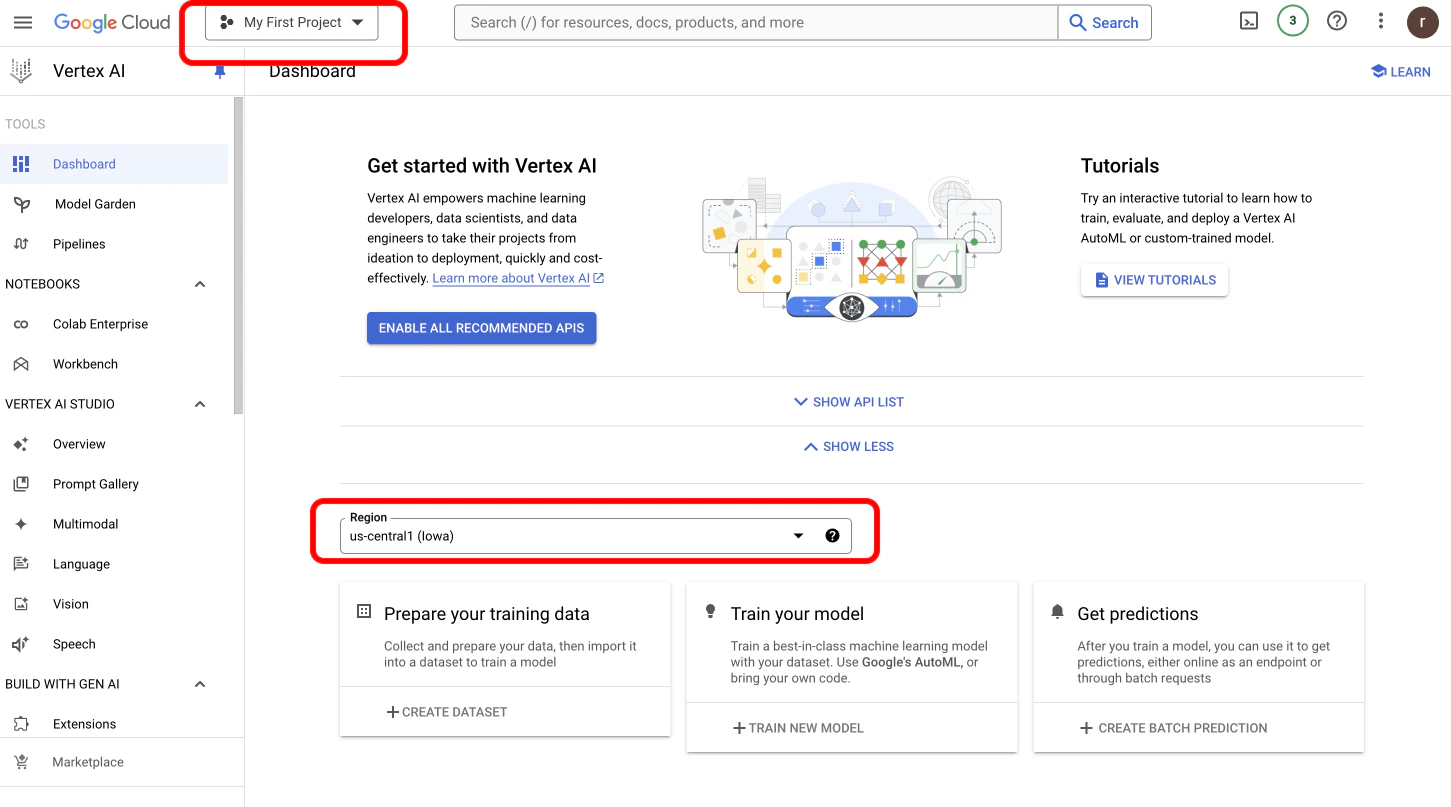
Get Your Service Account JSON
- Follow this process to get your Service Account JSON.
- Upload your Google Cloud service account JSON file
- Specify the Vertex Region
aiplatform.endpoints.predict permission to access custom endpoints.
Learn more about permission on your Vertex IAM key here.
For Self-Deployed Models: Your service account must have the
aiplatform.endpoints.predict permission in Google Cloud IAM. Without this specific permission, requests to custom endpoints will fail.Using Project ID and Region Authentication
For standard Vertex AI models, you can simply provide:- Your Vertex Project ID (found in your Google Cloud console)
- The Vertex Region where your models are deployed